
'_Xsrf' argument missing from POST: 5 Ways to Fix it
This error occurs when running Python scripts


 3 min. read
  Updated on
Key notes
- One way to deal with this issue is to disable xsrf checks.
- Opening the notebook in your browser can also help.

Many users have encountered the ‘_xsrf’ argument missing from POST message while running a script on Jupyter Notebooks, but there are ways to fix this issue.
What causes the _xsrf argument missing from post error?
Missing or expired CSRF tokens are the most common cause. If CSRF protection is disabled, you’ll also get this message. In some instances, browser extensions can cause this issue as well.
How can I fix the ‘_xsrf’ argument missing from POST error?
Before proceeding with any steps ensure that you don’t have LastPass extension installed or active. Also, check for token mismatch and refresh your browser.
1. Open the existing notebook
- Go to the Jupyter webpage.
- Click File, then select Open.
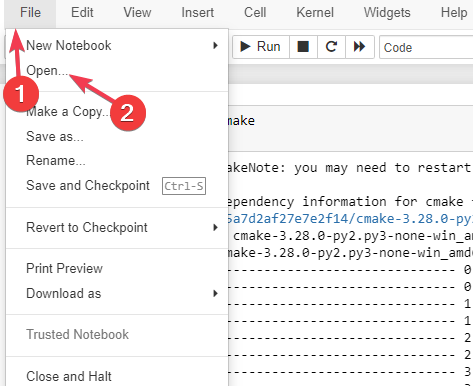
- Choose another existing notebook with the .ipynb extension.
- Alternatively, you can navigate to File, then click New Notebook and create the notebook on the same kernel.
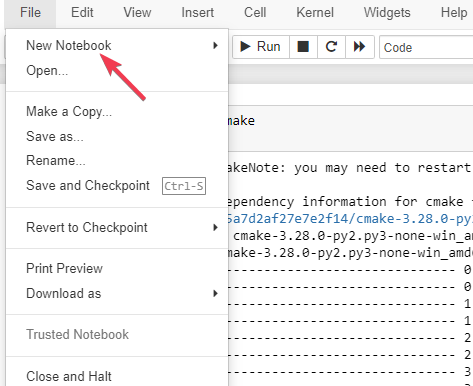
- Now go back to the notebook with the _xsrf argument missing from POST error and click Save as to save it.
- In case you have closed the window where the error appeared, press the Windows key, type jupyter notebook in the search box, and click Open.
- Look for a link with https://localhost, then copy it.
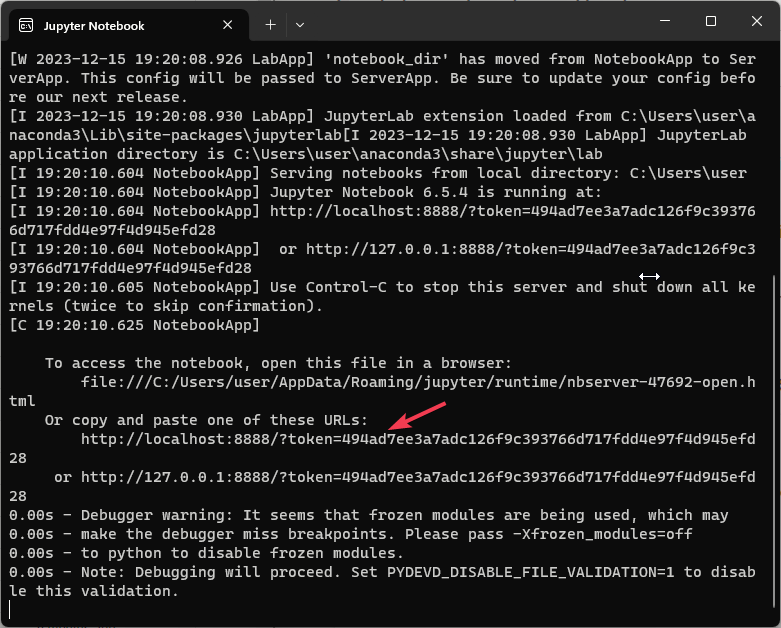
- Launch the browser and paste the link.
2. Open the tree endpoint
- Open your preferred browser and visit the tree endpoint.
- Press F5 to refresh your browser.
- Now, click New, then select Python 3 (ipykernel) from the drop-down menu.
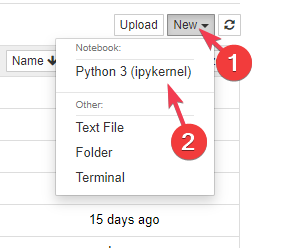
- Check if the issue persists.
3. Disable the xsrf checks
- Open the preferred terminal, then copy & paste the following command, and hit Enter:
jupyter lab --ServerApp.disable_check_xsrf=True - Now close the terminal and check if it resolves the issue.
4. Download the notebook
- Go to Jupyter Notebook, click File, then select Download as, then Notebook (.ipynb).
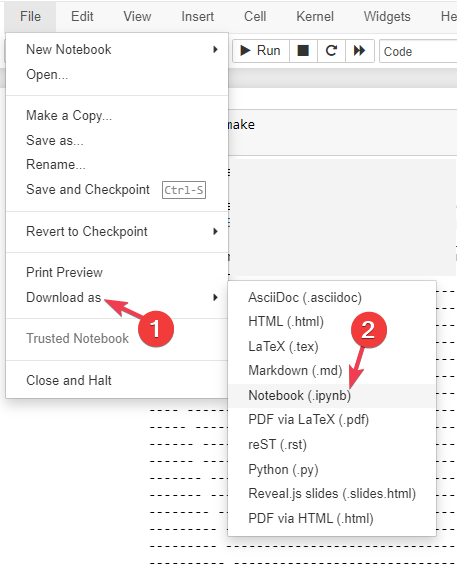
- Go to File, then select Open from the drop-down menu.
- Locate the downloaded .ipynb file and open it.
5. Interrupt the kernel
- On the Jupyter Notebook, click Kernel from the top menu.
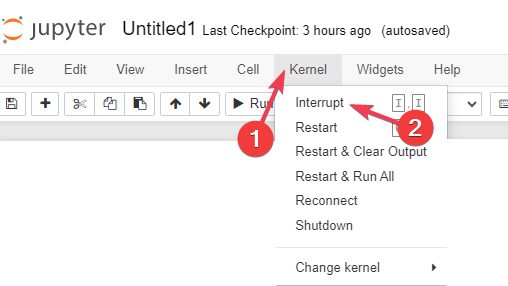
- Click Interrupt.
If you are facing another error with Python, you can use the Try-except-print method; we have a separate guide to how to use it.
If you have more issues with Python, we also have guides on PermissionError Errno 13 and Python Runtime error that you should check.
To conclude, if you find yourself stuck with Xsrf’ Argument Missing from POST error while saving a script on Jupyter Notebook, you should check for the token expiry, incompatible browser extensions, or disable xsrf checks.
If you think your browser is causing this issue, you can check out the guide listing the best browsers for Jupyter Notebook before making an informed decision.
Did we miss a step that helped you fix the problem? Don’t hesitate to mention it in the comments section below. We will happily add it to the list.

Read our disclosure page to find out how can you help Windows Report sustain the editorial team. Read more


Improve this guide


User forum
1 messages