
Error: Cannot Decrypt in Bitwarden [Fix]
This is a minor bug that is fixed by logging out and logging back in


 3 min. read
  Updated on

Many experienced Bitwarden Cannot decrypt error message, and if this issue appears, you won’t be able to see and differentiate your saved logins. This will make logging in to certain services almost impossible.
This is a major problem, especially if you can’t access your work or bank account, however, there are a few solutions that you can use to fix this issue.
How do I fix Error: Cannot Decrypt in Bitwarden?
1. Log out and log in again
- Click the Bitwarden browser extension icon in your browser.

- Next, click the Settings icon in the bottom right corner.

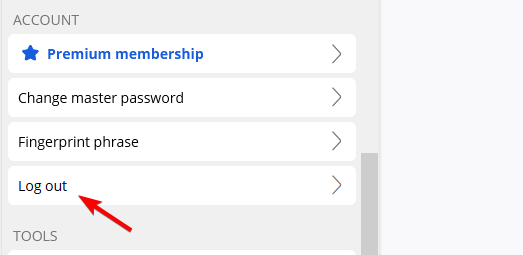
- Select the Log out option.
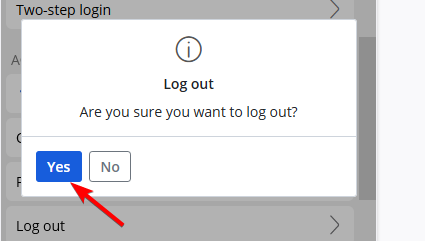
- When the confirmation dialog appears, click on Yes.
- Now log back into the extension with your login details.
Few users reported that you don’t have to log out fully, it might be enough to lock your password vault and unlock it again.
2. Sync your vault
- Click the Bitwarden extension.
- Next, go to Settings.
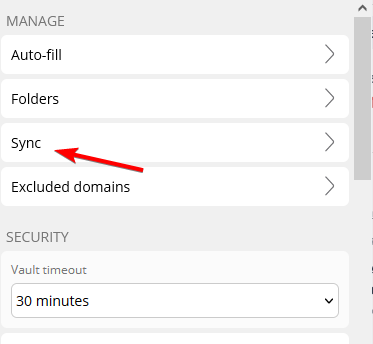
- Select Sync from the list.
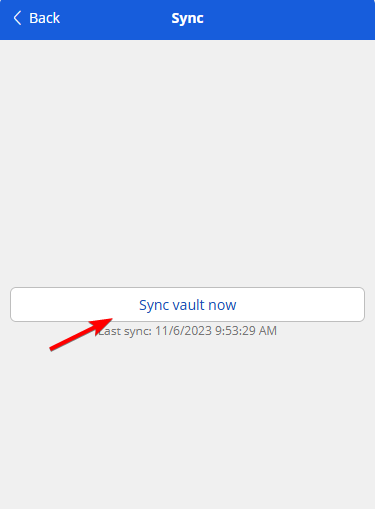
- Lastly, click on Sync vault now.
- After the syncing is complete, check if the problem is still there.
3. Reinstall the extension
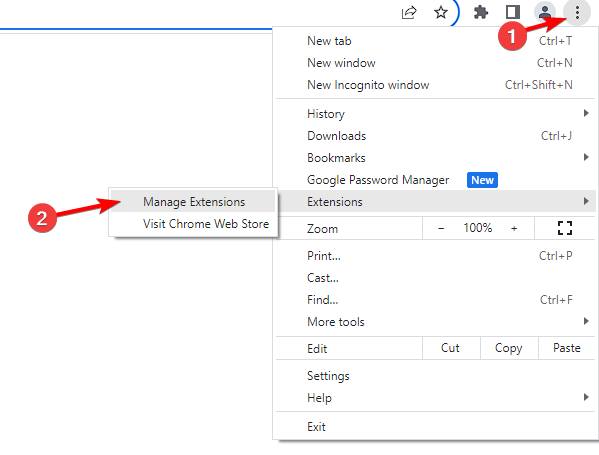
- Click the Menu button and choose Extensions. Then select Manage Extensions.
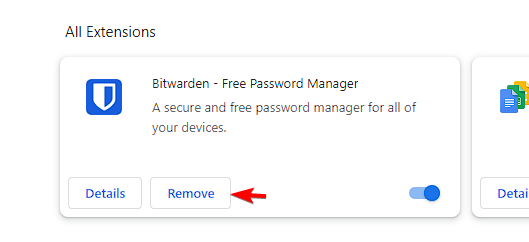
- Locate Bitwarden and click on Remove. When the confirmation dialog appears, click on Yes.
- Visit the Bitwarden extension page and download it again.
- Once it’s installed, log in and check if the issue is still there.
Tips for good password habits & security practices
- Use a reliable password manager and secure it with a strong and unique master password.
- Ensure that each online account uses a different password. In addition, try to make your password at least 8 characters long and try to include uppercase letters, symbols, and numbers.
- Use two-factor authentication for all your accounts. This will prevent hackers from accessing your account even if they have your password. For maximum security, it’s suggested to use multi-factor authentication.
Bitwarden CLI error cannot decrypt is just a temporary issue, and it can be fixed by logging out or by performing a manual sync. All these solutions should work for the desktop application as well, so don’t hesitate to use them.
Despite being a great password manager, Bitwarden has its issues, and many reported that Bitwarden autofill is not working in Firefox and Bitwarden failed to fetch error. We covered those in separate guides, so don’t miss them.
Recently we published a guide on An error has occurred message in Bitwarden, so don’t hesitate to visit it for more information.
Did you ever experience this issue and how did you fix it? Let us know in the comments section!

Read our disclosure page to find out how can you help Windows Report sustain the editorial team. Read more


Improve this guide


User forum
0 messages