
Fix Boot Device Not Found and Get Your PC Running Again


 3 min. read
  Published on

When your PC shows the boot device not found error, Windows cannot find the drive that holds your system files. You can fix this issue by checking hardware connections, adjusting BIOS settings, and repairing the bootloader.
Table of contents
Boot Device Not Found Error Fix Guide
1. Check Physical Drive Connections
Loose cables cause drive detection failures. Confirm that everything sits firmly in place.
- Power off the computer and unplug it from the outlet.
- Open the side panel and check the SATA and power cables going to your drive.
- Reseat both cables, making sure they click into place.
- Close the case and start the PC again.
2. Confirm Boot Order in BIOS
A wrong boot order sends the system to the wrong drive.
- Restart the PC and press the BIOS key such as F2, F10, F12, or Delete.
- Open the Boot or Startup settings menu.

- Put your Windows drive at the top of the boot priority list.
- Save changes and exit.
3. Run Startup Repair
Windows Startup Repair fixes issues that stop your system from loading.
- Insert a Windows installation USB and boot from it.
- Select Repair your computer, then Troubleshoot.

- Select Startup Repair and wait for the scan to finish.

- Restart your PC when the tool completes the repair.
If your laptop shows a similar issue, check this HP specific fix: HP error code 3f0.
4. Rebuild the Bootloader with Command Prompt
Corrupted boot records also trigger the boot device not found error.
- Boot from a Windows installation USB.
- Select Repair your computer, then Command Prompt.
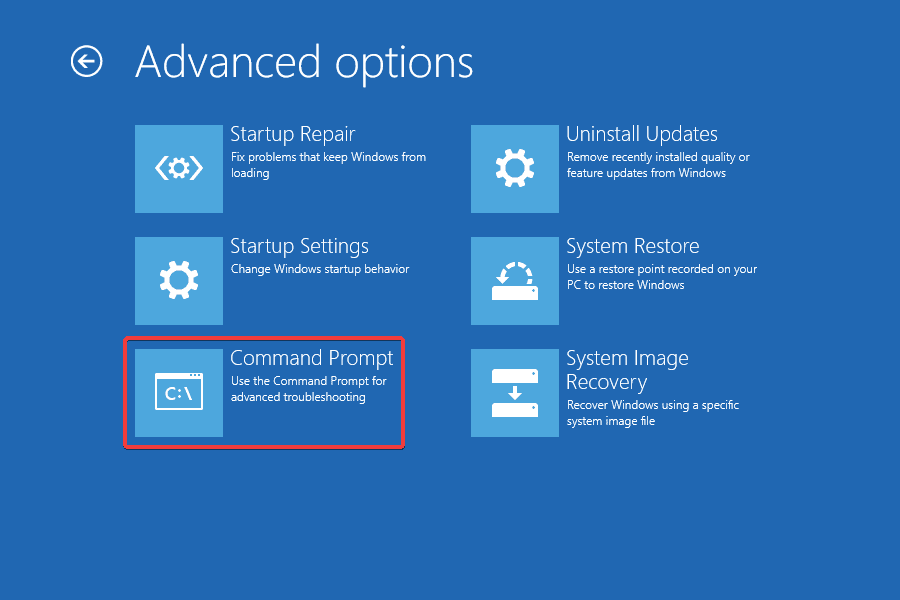
- Type bootrec /fixmbr and press Enter.
- Type bootrec /fixboot and press Enter.
- Type bootrec /rebuildbcd and press Enter.
- Restart the PC.
5. Test the Drive for Failure
A failing HDD or SSD often becomes undetectable.
- Open BIOS and check if the drive appears in the storage list.
- If it shows up, run the built in diagnostics tool in BIOS.
- If the drive fails the test, replace it and reinstall Windows.
- Restore your files from a backup.
What Does Boot Device Not Found Mean
This message appears when the computer cannot detect a valid startup drive. The issue usually comes from loose cables, wrong boot order, corrupted system files, or a failing drive. For a related scenario, see this guide on no boot device available.
FAQs
The PC cannot detect your startup drive because of cable issues, wrong BIOS settings, corrupted boot files, or a failing drive.
No. RAM problems cause crashes or beeps at startup. The boot device message comes from storage issues.
Try a different SATA port or cable. If the SSD still does not appear, the drive may have failed.
Occasionally, a failed update corrupts the bootloader. Booting from a Windows USB and rebuilding the boot records usually fixes the issue.
Conclusion
The boot device not found error usually comes from simple issues like loose cables or the wrong boot drive. You can often fix it by checking connections, adjusting BIOS settings, or rebuilding the bootloader. If the drive still refuses to appear, run diagnostics to confirm whether the hardware has failed. For systems that show a similar message across Acer or Dell devices, check this guide: no bootable device found on Acer or Dell.

Read our disclosure page to find out how can you help Windows Report sustain the editorial team. Read more


Improve this guide


User forum
0 messages