
Caret Browsing: What It Is and How to Enable It in Any Browser


 3 min. read
  Published on

Caret Browsing lets you move and select text on a webpage using your keyboard instead of a mouse, and this guide will show you how to enable and use it in Chrome, Edge, and Firefox.
Table of contents
How to Enable Caret Browsing in Windows Browsers?
Enable Caret Browsing in Microsoft Edge
Follow these steps to activate Caret Browsing in Edge:
- Open Microsoft Edge.
- Press F7 on your keyboard.
- When prompted, select Turn on to turn it on.

- Move through web text with the arrow keys.
- Press F7 again and select Turn off to disable it.
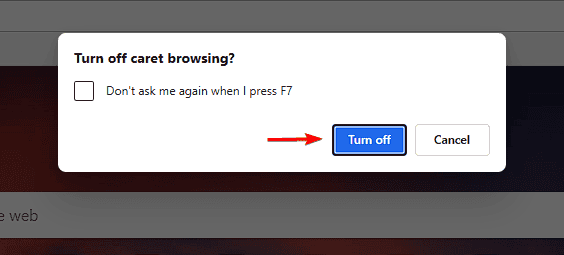
Tip: You can also enable it permanently from Settings > Accessibility > Navigation.
Enable Caret Browsing in Google Chrome
Here’s how to enable the feature in Chrome:
- Open Google Chrome.
- Press F7 and confirm by clicking Turn on.

- Use arrow keys to move the cursor and Shift + arrow keys to select text.
- Press F7 again to disable it.
If no pop-up appears, type the following in the address bar and toggle Navigate pages with a text cursor: chrome://settings/accessibility
You can also check out our guide on how to block or allow pop-ups in your browser to improve browsing control.
Enable Caret Browsing in Mozilla Firefox
You can turn on Caret Browsing in Firefox with these steps:
- Open Mozilla Firefox.
- Press F7 and click Yes when prompted.
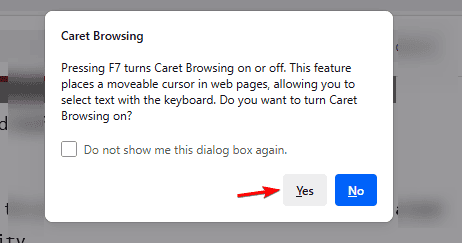
- Use the arrow keys to move and Shift to highlight text.
Alternative method: Type about:config in the address bar, search for accessibility.browsewithcaret, and set it to true.
How to Use Caret Browsing Effectively
Try these shortcuts to make the most of Caret Browsing:
- Use the arrow keys to move the caret through text.
- Hold Shift and press arrow keys to select text.
- Press Ctrl + C to copy and Ctrl + V to paste.
- Press Ctrl + Home to go to the top or Ctrl + End to jump to the bottom.
- Use Page Up and Page Down to scroll quickly.
- Hold Ctrl + Shift + Arrow keys to select entire words or lines.
- Press Ctrl + F to search from your current caret position.
What Is Caret Browsing?
Caret Browsing allows you to navigate web pages with a blinking cursor, similar to editing a document, using arrow keys to move and Shift to select text for accessibility and precision browsing.
If you want to explore how browsers handle local files, check our detailed guide on how to use your browser to open local files.
Why Use Caret Browsing?
Caret Browsing helps users who prefer keyboard navigation, have limited mouse control, or need precise text selection and is valuable for accessibility and screen reader support.
If you work with automated scripts or testing tools, you might also be interested in learning about headless browsers and how they work.
FAQs
Press F7 to enable or disable it in most browsers.
Yes, though certain web apps or embedded videos may not support it fully.
A blinking cursor appears on the webpage text when Caret Browsing is active.
No, it’s available only in desktop browsers.
Conclusion
Caret Browsing is a quick, keyboard-friendly way to navigate and select text on any webpage, and once enabled you can browse with more control and precision using just your keyboard.

Read our disclosure page to find out how can you help Windows Report sustain the editorial team. Read more


Improve this guide


User forum
0 messages