
How to Update Drivers Using CCleaner Driver Updater?
Explore a hassle-free way to update your device drivers


 2 min. read
  Updated on
Key notes
- The CCleaner Driver Updater is an efficient tool to keep the drivers up to date.
- CCleaner Driver Updater has an extensive database of device drivers and comes with a 14-day free trial.

Keeping the drivers up to date is essential as it ensures your PC has no security or compatibility issues. You can install drivers on your computer manually or use a third-party application. However, it is suggested to use a driver updater tool to update drivers seamlessly.
This guide will discuss how to update drivers using CCleaner Driver Updater. But before that, let us know more about this driver updater.
Can CCleaner Driver Updater update drivers on the computer efficiently?
Updating drivers manually can be tricky, especially when you don’t know your way around your computer. Also, updating the device drivers without any help might cause configuration issues.
Using a third-party tool like CCleaner Driver Updater that searches across all major device manufacturers to ensure you get the correct driver for your computer is the safest option.
How can I update drivers using CCleaner?
- Download and install CCleaner Professional.
- Launch the application.
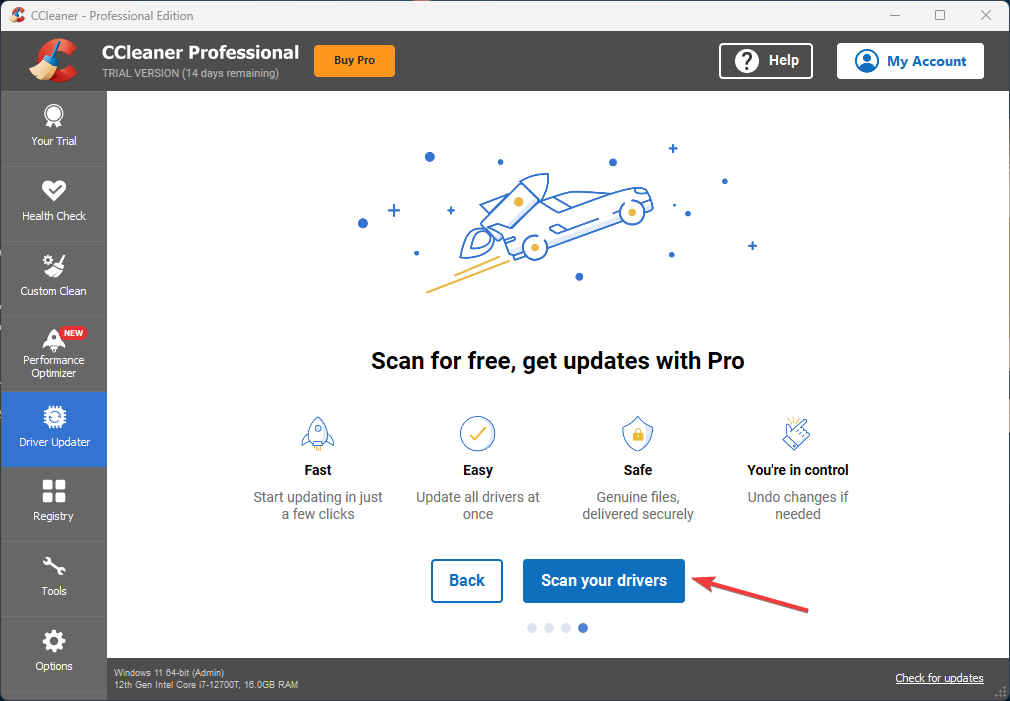
- Go to the Driver Updater tab from the left pane and click Scan your Drivers.
- It will show you the list of outdated drivers on your computer. Click Update All.
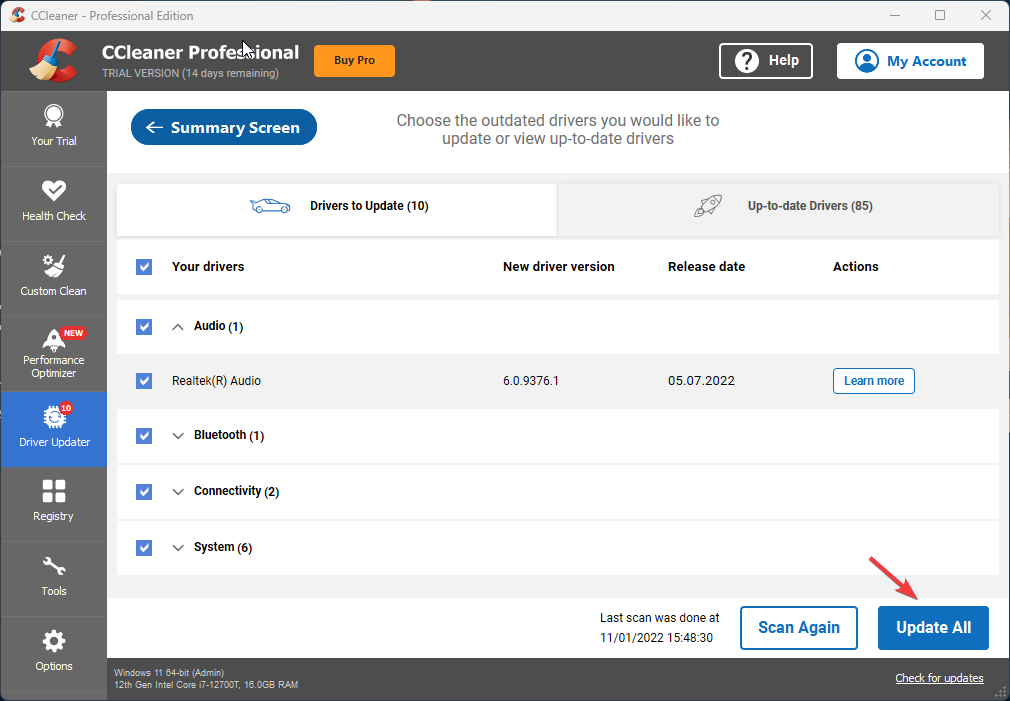
Now, the driver updater will download and install the drivers on your computer. Once done, restart your computer to let the changes take effect.
That’s it; this is how you can update your device drivers on Windows 11 using CCleaner Driver Updater. In addition, you can run a scan every once in a while using the driver updater tool for smooth performance of your PC.
Facing any issues while updating drivers? Feel free to let us know in the comments section below.

Read our disclosure page to find out how can you help Windows Report sustain the editorial team. Read more


Improve this guide


User forum
0 messages