
How to Change Windows 11 Sounds Quickly Step by Step


 3 min. read
  Updated on

Customizing your Windows 11 sounds can make your PC feel more personal and easier to recognize. Follow the steps below to change notification tones, startup sounds, and more.
Table of contents
How to Change Windows Sounds in Windows 11?
1. Use Control Panel
You can easily access the sound settings through the Control Panel.
- Press Windows + R to open the Run dialog box.
- Type control and press Enter.
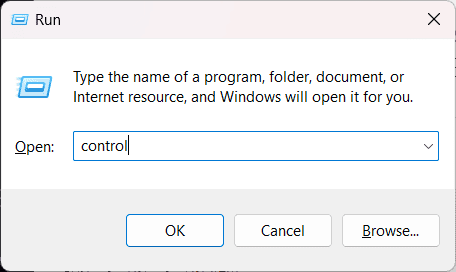
- In the upper right corner, change View by to Large icons.
- Click Sound from the list.

2. Access the Sounds Settings
Now that you opened the Sound panel, you can modify any system sound.
- In the Sound window, open the Sounds tab.
- Under Program Events, find the event you want to change, such as Notification or Device Connect.
- Select the event to highlight it.

3. Choose or Add a New Sound
Once you select an event, pick a sound that fits your preference.
- Use the Sounds list to pick a built in tone.
- Click Test to preview the sound.
- To use your own file, click Browse and select a .wav from your PC.

- Click Apply then OK to save.
4. Restore Default Sounds (Optional)
If you want the original tones back, revert to the default scheme.
- Reopen the Sound settings window.
- Select Sound Scheme and choose Windows Default.
- Click Apply then OK.
For more details, see this complete guide on how to change sound settings in Windows 11.
To enhance your listening experience further, learn how to enable Windows Sonic surround sound in Windows 11.
How to Change the Startup Sound in Windows 11
You can bring back the classic startup chime or add your own tune.
- Press Windows + I to open Settings.
- Go to Personalization > Themes > Sounds.
- Check Play Windows Startup sound.

- Click OK to confirm.
Customize the Startup Sound via Registry Editor
Enable the logon event so you can assign a custom sound.
- Press Windows + R, type regedit, and press Enter.
- Navigate to HKEY_CURRENT_USER\AppEvents\EventLabels\WindowsLogon.
- Open ExcludeFromCPL and change the value from 1 to 0.
- Open the Sound panel again, locate Windows Logon, and assign your desired .wav file.
Explore more options in this step by step guide on changing the Windows 11 startup sound.
How to Change Notification Sounds for Apps
Windows 11 lets you personalize alert sounds per application.
- Press Windows + I to open Settings.
- Go to System > Notifications.
- Select an app such as Mail or Teams.
- Toggle Play a sound when a notification arrives.
- Repeat for other apps as needed.
For detailed guidance, see this tutorial on how to change notification sounds in Windows 11.
FAQs
No. Windows 11 supports WAV files for system events. Convert audio to WAV before assigning it.
Customizing your Windows 11 sounds can make your PC feel more personal and easier to recognize. Follow the steps below to change notification tones, startup sounds, and more.
Yes. Each Windows user profile can have a separate sound scheme and notification preferences.
Check the Microsoft Store under Themes. Many themes include sound sets along with wallpapers and accent colors.
Conclusion
Changing Windows 11 sounds is a quick way to personalize your PC. Adjust system tones, enable the startup chime, and tailor app alerts to match your workflow and style.

Read our disclosure page to find out how can you help Windows Report sustain the editorial team. Read more


Improve this guide


User forum
0 messages