
How to Fix the ERR_CERT_VALIDITY_TOO_LONG Error (Quick Guide)
A certificate is valid for a period of time determined by the CA


 4 min. read
  Updated on

The ERR_CERT_VALIDITY_TOO_LONG error in Chrome appears when an SSL certificate exceeds the maximum allowed validity period. Since September 2020, most browsers limit certificate lifespan to 398 days. Anything beyond that will trigger a net::err_cert_validity_too_long or certificate validity too long error.
This guide shows you how to fix or avoid the issue in both local setups and live websites.
Table of contents
What Causes the Certificate Validity Too Long Error?
- Browser Policy Change: Modern browsers like Chrome and Safari now enforce stricter certificate policies. Any SSL certificate valid for more than 13 months (398 days) is rejected.
- Misconfigured SSL Certificates: Some web hosts or self-signed certs may still use 2–3 year durations by default.
- Local Development with Long Expiry: When generating certificates for local environments (using OpenSSL or mkcert), devs often use long-term validity by mistake.
How can I fix the Chrome certificate validity too long error?
1. Update your system time
If the clock on your computer is not in sync with the server, it could result in a wrong certificate expiration date. Once Chrome detects your computer’s clock is incorrect, it will display an error message.
This may have happened if you have traveled recently and not reset your time and date settings to your current time zone. You can manually do so through the control panel.
2. Update your OS/browser
This is probably the easiest solution, but if you haven’t updated your operating system in a while, it might be time to do so. Using an older version of Windows or macOS may bring up bugs and errors with third-party software such as Chrome.
If you’ve updated your OS and still have issues with Chrome not loading websites properly, it might be time for another update — specifically for Chrome itself.

This can happen if there are bugs in the browser code itself or if security updates are needed to ensure that users’ data remains safe from hackers trying to steal login information and other sensitive data.
3. Clear SSL cache
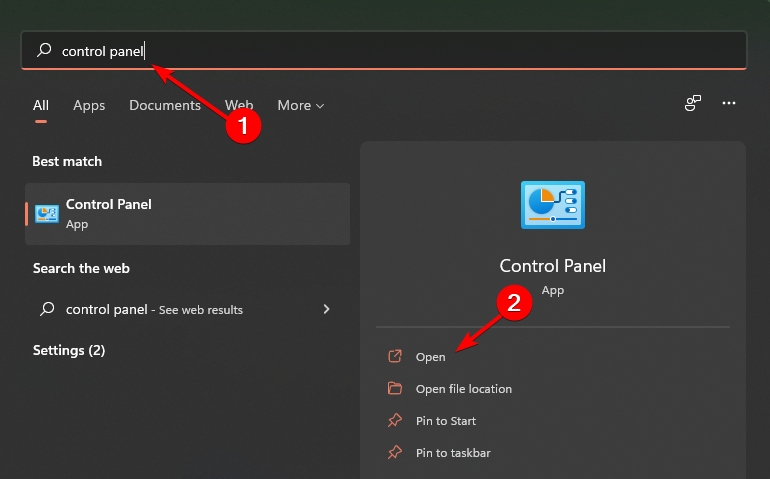
- Hit the Windows key, type Control Panel in the search bar and click Open.
- Navigate to Network and Internet.

- Click on Internet Options.

- Go to the Content tab and hit the Clear SSL state button.

- Retry your site again.
How to disable certificate check in Chrome?
The SSL certificate check is a security feature that helps protect people who visit your website. It prevents your website from being impersonated and encrypts information sent between you and your visitors.
However, it can easily become a nuisance if it continuously blocks websites that are not harmful. You can disable this feature for development purposes or during testing to allow any site to open in Chrome.
Disabling the certificate check will allow you to access blocked sites and download otherwise inaccessible content. To do so, follow the steps below:
- Find the Google Chrome shortcut on your Desktop, right-click on it and select Properties.

- Navigate to the Target string and add the following string at the end:
--ignore-certificate-errors
- Press OK to effect the changes.
Hopefully, you have been able to resolve the Chrome validity certificate too long error with one of our recommended solutions.
You may also experience certificate errors in Microsoft Edge, but you can refer to our detailed guide on how to bypass the issue.
If you have the time, you can also create a self-signed certificate which will go a long way in helping you avoid similar problems in the future.
Let us know of any other solution not mentioned above that may have helped you resolve this issue in the comment section below.


Read our disclosure page to find out how can you help Windows Report sustain the editorial team. Read more


Improve this guide


User forum
0 messages