
How to Fix Disney Plus App Not Working Quickly


 4 min. read
  Published on

The Disney Plus app sometimes stops working due to poor internet, outdated app versions, cache issues, or server outages. Many users report buffering, login errors, or the app not loading at all. The good news is you can fix these problems with a few quick steps.
Table of contents
How can I fix Disney Plus App not working?
1. Check Disney Plus server status
Start by making sure the issue is not caused by Disney’s servers.
- Go to the official Disney Plus Help Center or social media for outage reports.
- Use websites like DownDetector to see if others are facing issues.
- If servers are down, you must wait for Disney to resolve it.
2. Restart your device and app
A quick restart often fixes temporary glitches.
- Fully close the Disney Plus app.
- Restart your smartphone, tablet, TV, or streaming device.
- Relaunch the app and try signing in again.
For issues where the app keeps freezing or shutting down, see this guide on why Disney Plus keeps crashing and how to fix it.
3. Test and improve your internet connection
Disney Plus needs a stable connection to stream smoothly.
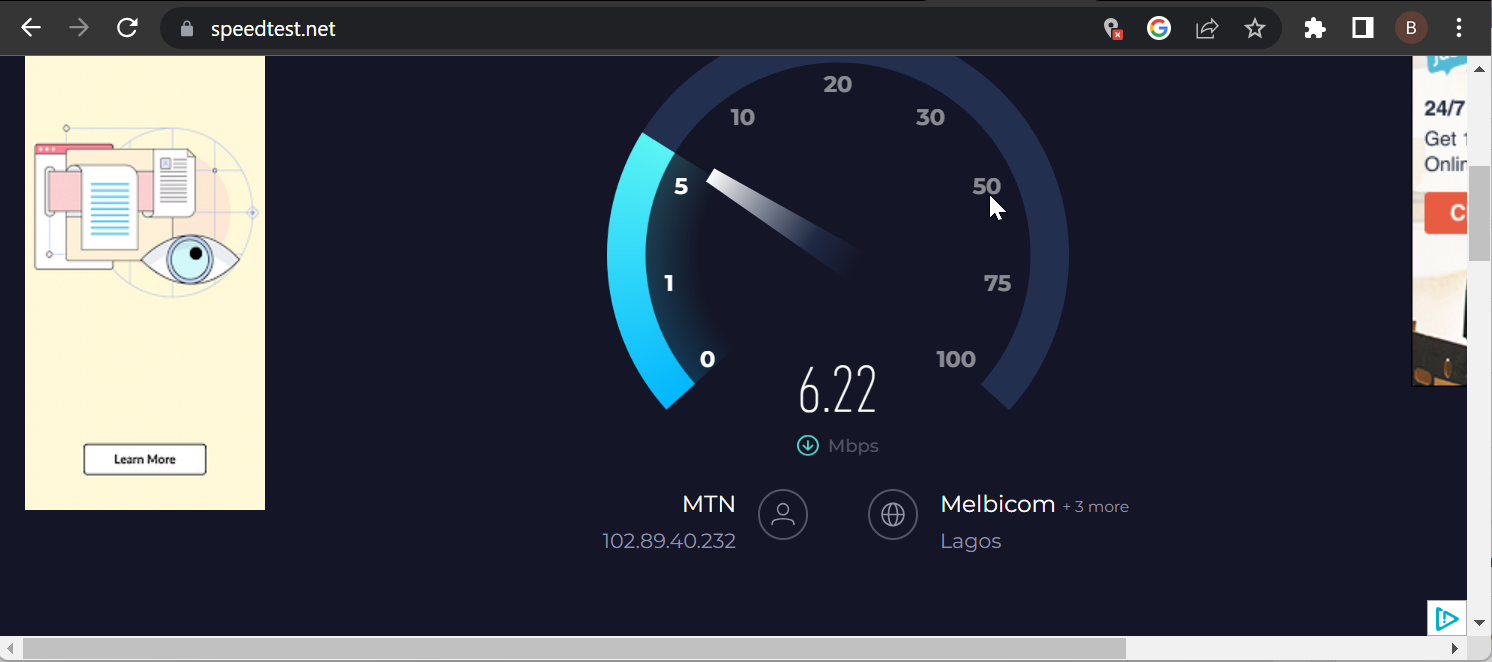
- Run a speed test to ensure at least 5 Mbps for HD or 25 Mbps for 4K streaming.
- Restart your Wi Fi router and modem.
- Switch to a wired connection if possible for more stability.
If playback stops to load too often, here are extra fixes for when Disney Plus keeps buffering.
4. Clear cache and app data
Corrupted cache files can prevent the app from loading correctly.
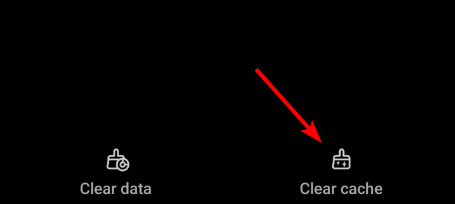
- On Android: go to Settings > Apps > Disney Plus > Storage > Clear cache.
- On iOS: delete and reinstall the Disney Plus app.
- On smart TVs or Fire Stick: clear cache in the device’s app settings.
5. Update or reinstall the app
Make sure you are running the latest Disney Plus app version.
- Open Google Play Store, App Store, or your TV’s app store.
- Check for pending Disney Plus updates and install them.
- If issues persist, uninstall and reinstall the app completely.
6. Update your device software
Outdated system software can cause compatibility problems.
- On phones, go to Settings > Software Update.

- On streaming devices or smart TVs, check for system updates.
- Install any available updates and restart your device.
7. Disable VPN or Proxy
Sometimes VPNs or proxies block Disney Plus access.
- Turn off any VPN or proxy service as they may block Disney Plus.
- If you need to use Disney Plus abroad, connect to a reliable VPN server in a supported region.
FAQs
This usually happens due to outdated firmware or app issues. Update both your TV software and the Disney Plus app, then restart.
Buffering often occurs due to a weak or unstable internet connection. Restart your router or use a wired connection.
Clear the cache on Android or reinstall the app on iOS. Also, check your internet speed and update the app.
Yes, but only with servers in supported regions. Some VPNs may cause errors if Disney detects them.
At least 5 Mbps for HD streaming and 25 Mbps for 4K UHD content.
Conclusion
If your Disney Plus app is not working, start by checking server status, restarting your device, clearing cache, and updating the app. In most cases, these steps quickly restore streaming. If the issue continues, reinstall the app or contact Disney Plus support for further help. You can also troubleshoot browser playback problems with this guide on fixing Disney Plus not working on Chrome.

Read our disclosure page to find out how can you help Windows Report sustain the editorial team. Read more


Improve this guide


User forum
0 messages