
Excel to CSV File: How to Convert it For Free
This can be done without third-party tools


 3 min. read
  Updated on

XLS is probably one of the most popular table formats on PCs, but many tend to use CSV. Luckily, you can easily convert Excel files to CSV, and in today’s guide, we’ll show you the best ways to do that.
How do I convert Excel files to CSV?
1. Use Save as an option in Excel
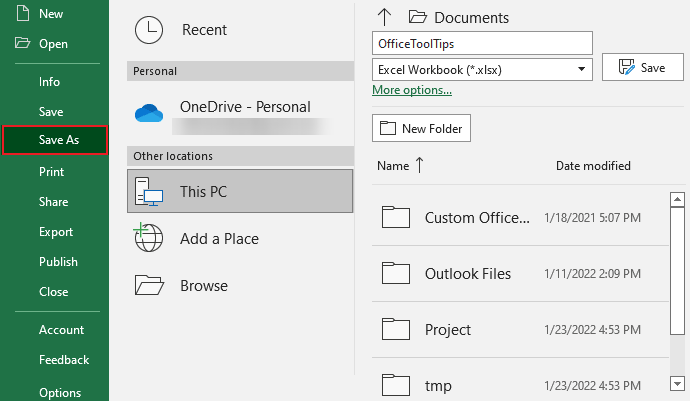
- In Excel, go to File and choose Save as.
- Next in the list of available formats, select CSV.
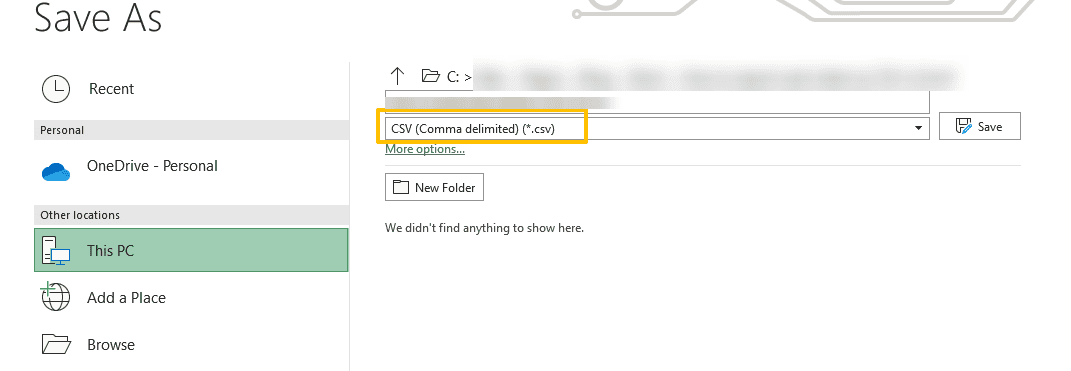
- Enter the file name and click on Save.
2. Use online converters
- Visit CloudConvert XLS to CSV page.
- Click on Select File.
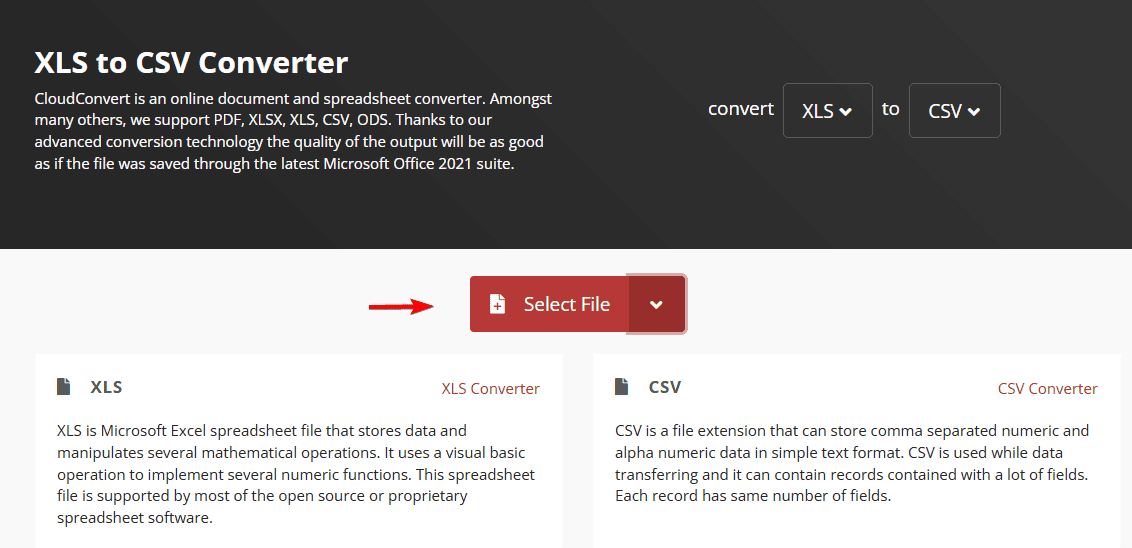
- Next, locate your file and select it.
- Once it’s uploaded, it will be converted automatically.
- Download your CSV file.
Keep in mind that there are many services like this available, and since they will store your files, it might be best to avoid using online converters for any sensitive files.
How do I convert Excel to CSV online?
- Open Excel Online.
- Go to File.
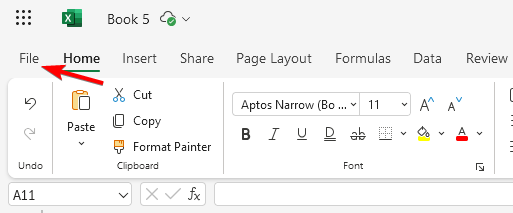
- Choose Open and then Open files from this device.
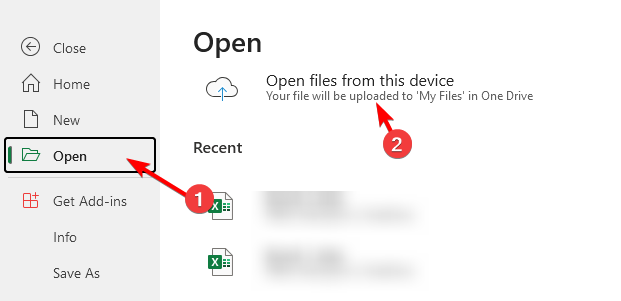
- Select your file.
- Once uploaded, go to File again and choose Export. Select Download this sheet as CSV.
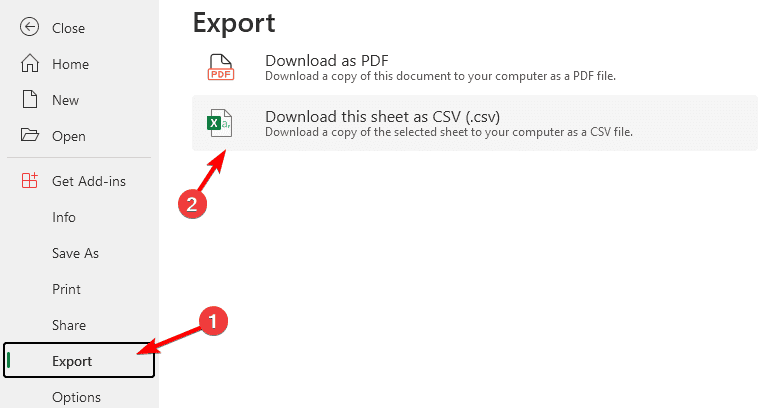
- Save the file to your PC.
This is a great and safe method to convert Excel to CSV files for free, so don’t hesitate to try it.
Why do we convert Excel files to CSV?
CSV files have several advantages including the following:
- Simplicity and wider compatibility with programming languages, databases, and more.
- Smaller file size and improved performance when processing.
Due to their small size and compatibility, CSV files are perfect for anyone who wants to analyze or process data using a programming language.
As you can see, it’s incredibly simple to convert Excel to CSV, and it can be one right from Excel software or the online version of Excel.
To learn more about CSV files, we have great guides on how to export CSV in PowerShell and how to fix corrupted CSV files.
Before you go, you might be interested in the best software to view CSV files on Windows. We also have a new guide on how to convert an Excel to Word file, so don’t miss it.
You can also convert Excel to JPG and we have a great guide that shows you how to do that, so don’t miss it. Before leaving, don’t miss our latest guide on how to open XLSX files for more information.

Read our disclosure page to find out how can you help Windows Report sustain the editorial team. Read more


Improve this guide


User forum
0 messages