
Failed to Determine Source Edition Type: 5 Ways to Fix It


 6 min. read
  Updated on
Key notes
- The Failed to determine the source edition type error usually pops up when trying to install a Windows update or upgrade Windows 10 to 21H2.
- This means that you miss out on the latest features, security patches, and even some critical changes that may affect the overall performance of your PC.
- While it could be possible that the error shows up due to improper Windows installation, it could also occur due to incompatible software/hardware, missing registry data, and more.

When trying to install a Windows update, some users receive the error message, Failed to determine source edition type.
This error is especially seen when trying to upgrade Windows 10 to 21H2. It indicates that the upgrade process fails to identify the edition type of the current version of Windows.
Why do I see failed to determine the source edition type error?
Some of the reasons why you may encounter the Failed to determine source edition type error as you try to install Windows update are:
- Corrupted Windows installation files – It could be possible that there’s a virus or malware infection, a hardware failure, or a power outage; hence, you see the error.
- Incompatible software – Incompatible software programs may interfere with the upgrade process and trigger the Failed to determine source edition type error.
- Conflicting hardware – If the hardware is not compatible with the latest version of Windows, this could affect the upgrade process.
- Windows registry data is missing – Sometimes, you may encounter a Windows update error due to a missing registry key.
- Corrupted system files – In some cases, the error may arise during the update installation due to damaged and missing system files.
- Incorrect time and language settings – Chances are that the time language settings on your PC is not correct.
How do I fix the failed to determine source edition type error?
Before you move on to the main troubleshooting methods below, you may want to try the following:
- Install the update again.
- Disconnect your peripherals and reboot the PC.
- Make sure there’s enough drive space.
- Download and install the latest update manually
- Disable any third-party antivirus software.
- Run the Windows Update Troubleshooter.
- Check if the Windows version is compatible with your PC.
If the above methods fail to fix the Windows update error, we have a quick rundown of some of the best solutions.
1. Reset Windows update components
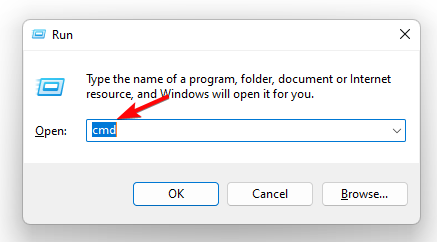
- Press the Win + R shortcut keys to launch the Run console. Type cmd and press the Ctrl + Shift + Enter keys together to open the elevated Command Prompt.
- Now, run the below commands one after another in the Command Prompt (Admin) window and hit Enter:
net stop bitsnet stop wuauservnet stop cryptsvcDel “%ALLUSERSPROFILE%\Application Data\Microsoft\Network\Downloader\qmgr*.dat”Ren %Systemroot%\SoftwareDistribution\DataStore DataStore.bakRen %Systemroot%\SoftwareDistribution\Download Download.bakRen %Systemroot%\System32\catroot2 catroot2.baksc.exe sdset bits D:(A;;CCLCSWRPWPDTLOCRRC;;;SY)(A;;CCDCLCSWRPWPDTLOCRSDRCWDWO;;;BA)(A;;CCLCSWLOCRRC;;;AU)(A;;CCLCSWRPWPDTLOCRRC;;;PU)sc.exe sdset wuauserv D:(A;;CCLCSWRPWPDTLOCRRC;;;SY)(A;;CCDCLCSWRPWPDTLOCRSDRCWDWO;;;BA)(A;;CCLCSWLOCRRC;;;AU)(A;;CCLCSWRPWPDTLOCRRC;;;PU)cd /d %windir%\system32regsvr32.exe atl.dllregsvr32.exe urlmon.dllregsvr32.exe mshtml.dllregsvr32.exe shdocvw.dllregsvr32.exe browseui.dllregsvr32.exe jscript.dllregsvr32.exe vbscript.dllregsvr32.exe scrrun.dllregsvr32.exe msxml.dllregsvr32.exe msxml3.dllregsvr32.exe msxml6.dllregsvr32.exe actxprxy.dllregsvr32.exe softpub.dllregsvr32.exe wintrust.dllregsvr32.exe dssenh.dllregsvr32.exe rsaenh.dllregsvr32.exe gpkcsp.dllregsvr32.exe sccbase.dllregsvr32.exe slbcsp.dllregsvr32.exe cryptdlg.dllregsvr32.exe oleaut32.dllregsvr32.exe ole32.dllregsvr32.exe shell32.dllregsvr32.exe initpki.dllregsvr32.exe wuapi.dllregsvr32.exe wuaueng.dllregsvr32.exe wuaueng1.dllregsvr32.exe wucltui.dllregsvr32.exe wups.dllregsvr32.exe wups2.dllregsvr32.exe wuweb.dllregsvr32.exe qmgr.dllregsvr32.exe qmgrprxy.dllregsvr32.exe wucltux.dllregsvr32.exe muweb.dllregsvr32.exe wuwebv.dllnetsh winsock resetnet start bitsnet start wuauservnet start cryptsvc
Once the commands have been executed successfully, the Windows updated files are fixed. Now, exit Command Prompt, restart your PC, and check if the Windows update error is gone.
2. Pause Windows updates
- Press the Win + I keys simultaneously to launch the Windows Settings app.
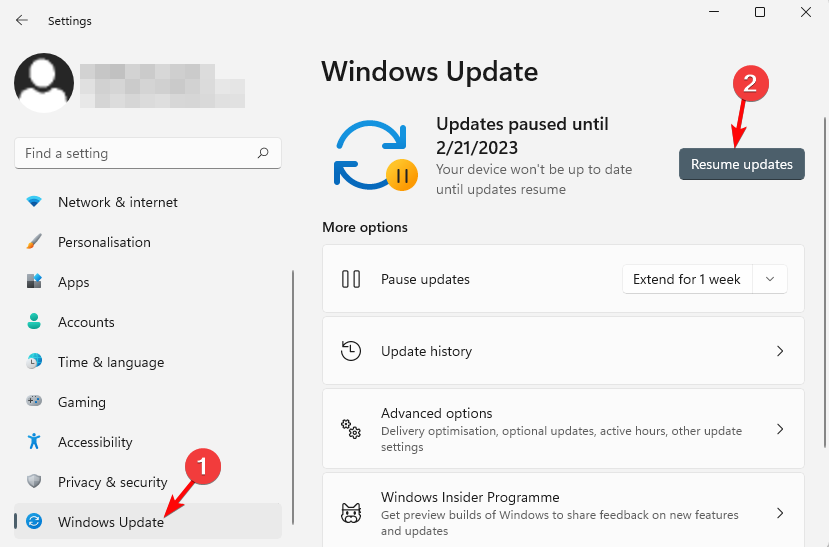
- Now, click on Windows Update on the left, and then, on the right, click on Resume updates (if you have already paused the updates).
- Reboot your PC, and again open the Settings window (press Win + I ).
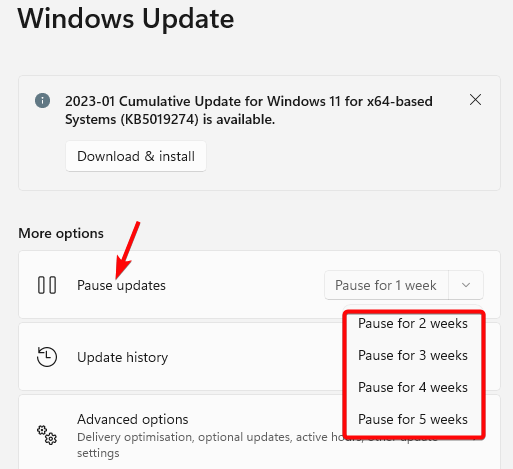
- Next, click on Windows Update on the left and go to Pause updates under More options.
- Here, select the pause duration from the drop-down, for example, Pause for 1 week, Pause for 2 weeks, etc.
Once you have paused the Windows updates, close the Settings app, and restart your PC.
Now, check if you can now install the Windows update without seeing the failed to determine source edition type error.
3. Change the Time and Language settings
- To open the Settings app, press the Win + I keys together.
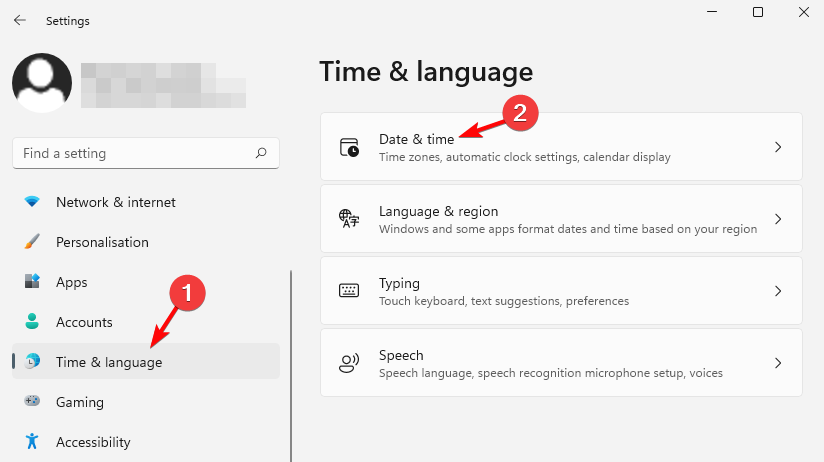
- Select Time & language on the left, and on the right, click on Date & time.
- Next, on the right, turn on both the Set the time automatically, and the Set the time zone automatically options.
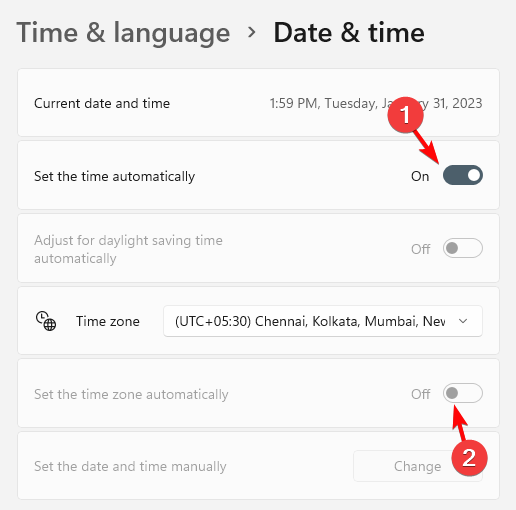
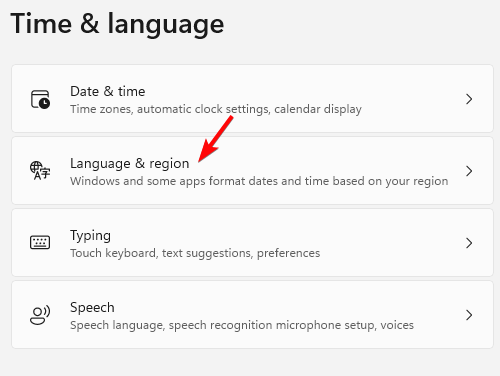
- Return to the Time & language page and select Language & region.
- On the next screen, go to Region, and select the correct Country or region.
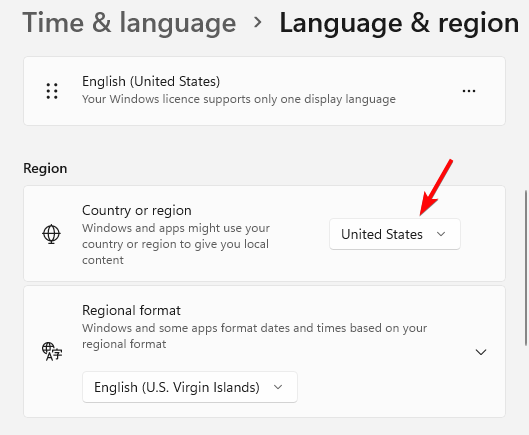
Now that you have successfully changed the time and language settings, you should not encounter the Windows update error anymore.
4. Manually delete your Windows Update files
- Reboot your PC in Safe Mode. Then press the Win + E shortcut keys to open the File Explorer.
- Here, navigate to C:\Windows\.
- Now, look for the SoftwareDistribution folder, select it, and hit Delete.
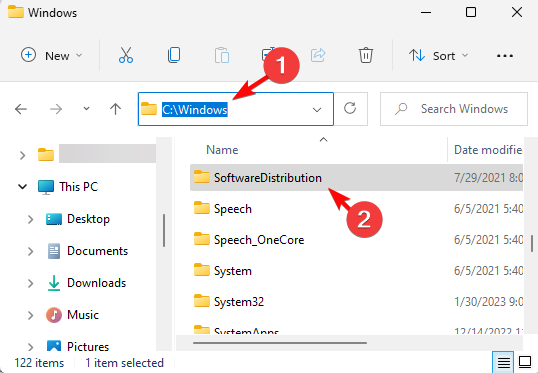
Now, close File Explorer, restart your PC, try installing the Windows update, and check if you still encounter the error.
5. Modify the registry settings
 NOTE
NOTE
This will help you to recover any data lost accidentally during the modification.
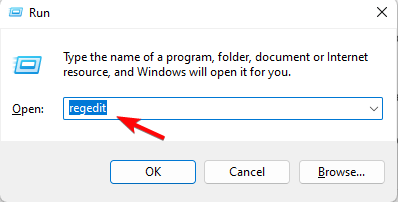
- Press the Win + R keys together to open the Run dialog, Here, type regedit and hit Enter to open the Registry Editor.
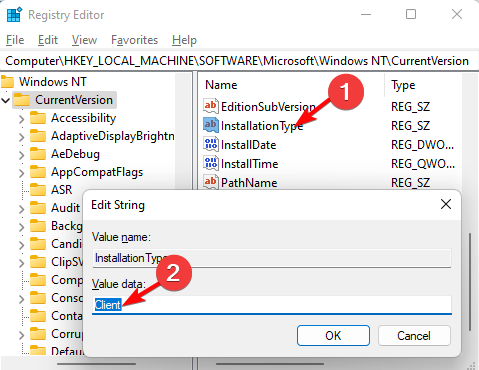
- In the Registry Editor window, navigate to the below path:
HKEY_LOCAL_MACHINE\SOFTWARE\Microsoft\Windows NT\CurrentVersion - Double-click on the Installation type string and set the Value data field to Client. Press OK.
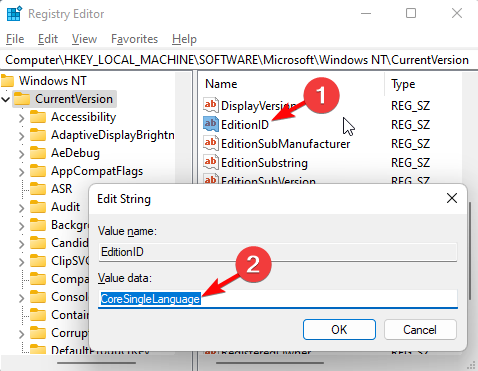
- Now, double-click on the EditionID, and set the Value data field to the supported value based on the edition (for example, CoreSingleLanguage in my case). Press OK.
List of supported values for EditionID based on the current Windows edition
| Supported Values | Operating System SKU |
| BusinessN | Windows 10/11 Professional N (49) |
| CloudEdition | CloudEdition (Windows 11 SE (203) |
| CloudEditionN | CloudEditionN (Windows 11 SE N (202) |
| Core | Windows 10/11 Home (10/111) |
| CoreCountrySpecific | Windows 10/11 Home China (99) |
| CoreN | Windows 10/11 Home N (98) |
| CoreSingleLanguage | Windows 10/11 Home single language (100) |
| Education | Windows 10/11 Education (121) |
| EducationN | Windows 10/11 Education (122) |
| Enterprise | Windows 10/11 Enterprise (4) |
| EnterpriseEval | Windows 10/11 Enterprise Evaluation (72) |
| EnterpriseG | Windows 10/11 Enterprise G (171) |
| EnterpriseGN | Windows 10/11 Enterprise G N (172) |
| EnterpriseN | Windows 10/11 Enterprise N (27) |
| EnterpriseNEval | Windows 10/11 Enterprise N Evaluation (84) |
| EnterpriseS | Windows 10 Enterprise LTSC (125) |
| EnterpriseSEval | Windows 10 Enterprise LTSC Evaluation (129) |
| EnterpriseSN | Windows 10 Enterprise LTSC N (162) |
| Holographic | Windows 10 Holographic (136) |
| IoTUAP | Windows 10 IoT Core (123) |
| IoTUAPCommercial | Windows 10 IoT Core Commercial (131) |
| IoTEnterprise | Windows 10/11 IoT Enterprise (188) |
| PPIPro | Windows 10 TeamOS (119) |
| Professional | Windows 10/11 Professional (48) |
| ProfessionalEducation | Windows 10/11 Professional Education (164) |
| ProfessionalEducationN | Windows 10/11 Professional Education N (165) |
| ProfessionalWorkstation | Windows 10/11 Professional for workstation (161) |
| ProfessionalN | Windows 10/11 Professional for workstation N (162) |
| ProfessionalSingleLanguage | Windows 10/11 Professional Single Language (138) |
| ServerRdsh | Windows 10/11 Enterprise multi-session (175) |
Besides you must also check if your internet connection is stable. Because if the network is poor, it can cause issues while downloading and installing Windows updates.
Alternatively, change the DNS server to Google’s Public DNS address and see if this helps you eliminate the Failed to determine source edition type error.
Or, you can run the system file checker utility to repair any corrupted system files or replace any missing files.
If none of the above methods works, you can perform a repair upgrade of Windows 10, which should fix the Windows update error.
For any further queries related to the Windows update process, do let us know in the comments section below.


Read our disclosure page to find out how can you help Windows Report sustain the editorial team. Read more


Improve this guide


User forum
0 messages