
Filecoauth.exe Application Error: Quick Fixes That Work


 3 min. read
  Published on

The filecoauth.exe application error appears when the file is corrupted, missing, or conflicts with system processes. This guide shows you quick methods to fix it easily.
Table of contents
How can I fix filecoauth.exe application error?
1. Restart your PC
A simple restart can clear temporary glitches and reload processes.
- Click the Start button.
- Select the Power icon.
- Choose Restart from the menu.

- Wait for your system to reboot.
- Check if the error is gone.
2. Run System File Checker
Corrupted system files may cause the error. The System File Checker can repair them.
- Press Windows + S and type Command Prompt.
- Right-click it and select Run as administrator.
- In the window, type the following and press Enter:
sfc /scannow
- Wait until the scan completes.
- Restart your PC and test again.
If the error is linked with other system processes like explorer.exe, you may also want to review this guide on fixing explorer.exe application error.
3. Update Windows
Keeping Windows updated ensures compatibility and stability.
- Press Windows + I to open Settings.
- Select Windows Update from the sidebar.
- Click Check for updates.
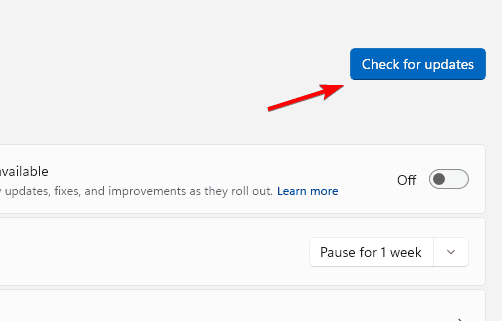
- Download and install all available updates.
- Restart your PC once updates are complete.
4. Reinstall the program using filecoauth.exe
If the issue is linked to a specific application, reinstalling it usually fixes the problem.
- Press Windows + R and type appwiz.cpl.

- Locate the problematic program in the list.
- Select it and click Uninstall.
- Restart your PC.
- Download and install the latest version of the app.
5. Perform a clean boot
A clean boot helps identify if third-party apps are causing conflicts.
- Press Windows + R and type msconfig.
- Go to the Services tab and check Hide all Microsoft services.
- Click Disable all.

- Switch to the Startup tab and open Task Manager.
- Disable all startup items and restart your PC.
Conclusion
If the error persists, you can learn more about filecoauth.exe and how it works in Windows. You may also find it helpful to explore solutions for related issues such as winword.exe application errors.
FAQs
It is usually caused by file corruption, missing components, or conflicts with other processes.
No, filecoauth.exe is a legitimate Windows file, but malware can sometimes disguise itself with a similar name. Running a scan is recommended.
Yes, outdated components often trigger such errors, and updating ensures compatibility and stability.
Not necessarily. Running System File Checker, reinstalling the affected app, or performing a clean boot often resolves the issue.
If the problem persists, deeper troubleshooting may be required, or you might consider professional repair services.

Read our disclosure page to find out how can you help Windows Report sustain the editorial team. Read more


Improve this guide


User forum
0 messages