
FTDI Driver for Windows 10 & 11: How to Download & Install
Updating drivers via the Device Manager often does the trick


 4 min. read
  Updated on

Many of us have that old computer that we just can’t let go of because it has some important files on it. It’s possible to save those old files and bring them into the modern day, but sometimes it’s tricky if it uses an old RS-232 connector.
Fortunately, there are options out there and one of those is the company known as FTDI. This company provides the hardware and, for the purposes of this guide, the software required to save those old devices.
Table of contents
How do I download & install FTDI drivers on Windows?
1. Update via Device Manager
- The first thing that you should do is the tried and true method of updating drivers via the Device Manager.
- On Windows 10, click the search bar and type in Device Manager. Click the first entry you see.
- Click Ports in the Device Manager.
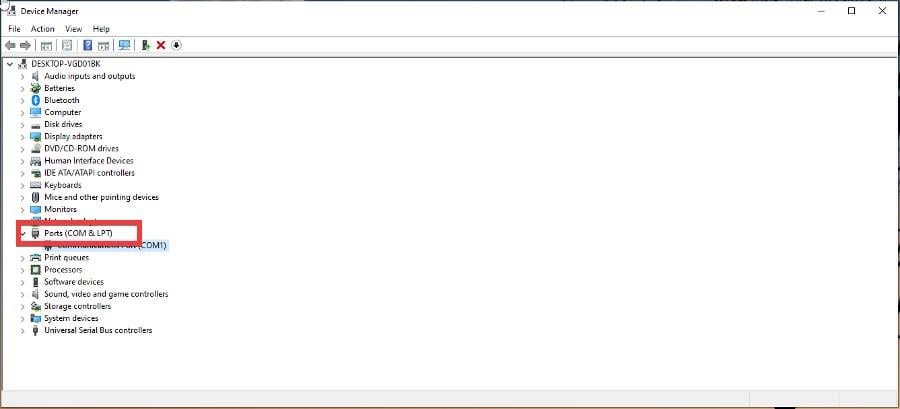
- You can also click Universal Serial Bus controllers at the bottom of the window if you connected your FTDI device to the USB port.
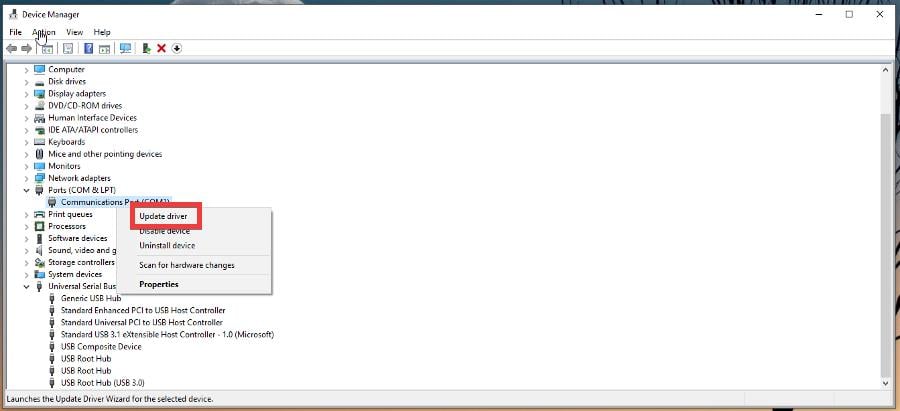
- Either way, right-click the device and select Update driver.
- Click Search automatically for drivers in the new window that appears.
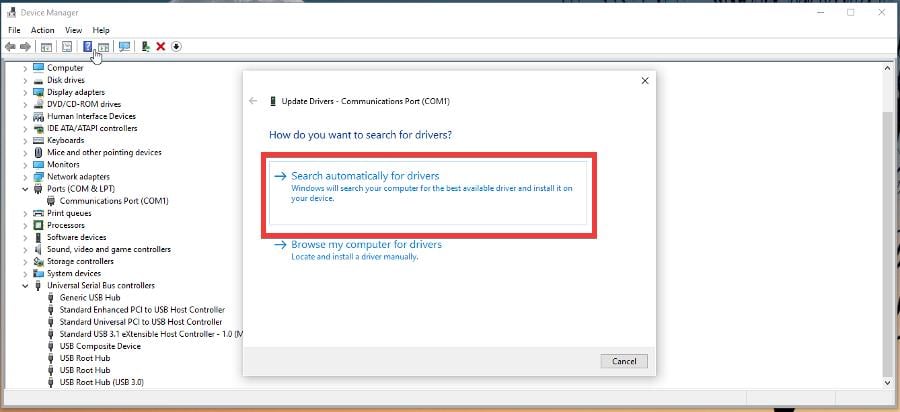
- Your computer will automatically update the FTDI drivers.
On Windows 11, the process is similar:
- Bring up the Device Manager on Windows 11.
- Click the location where the FTDI drivers can be found.
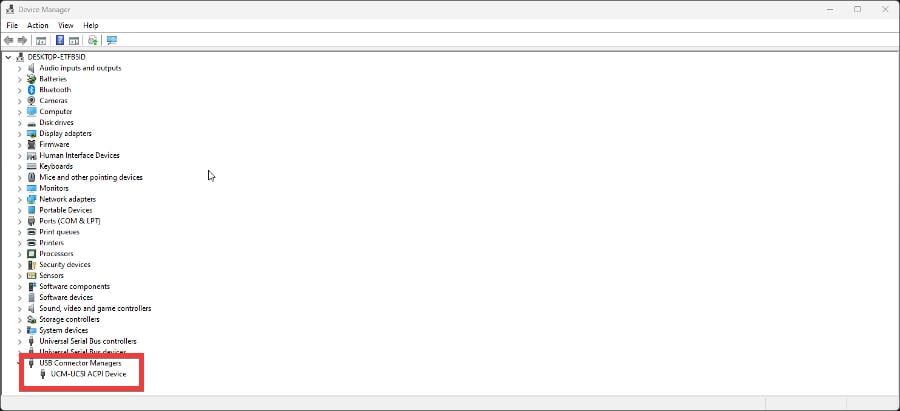
- Right-click the device and select Update Drivers.
- Like before, your computer will automatically download and install the FTDI drivers. If they’ve already been downloaded, you will get a window that informs you of this.
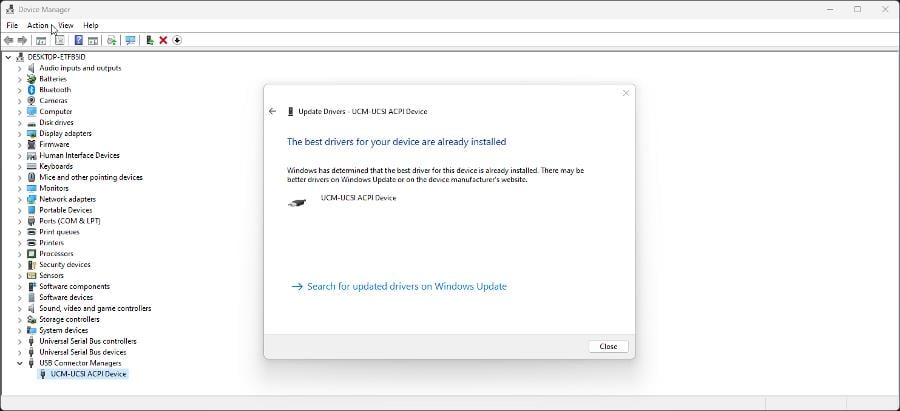
2. Update via the manufacture’s official website
 NOTE
NOTE
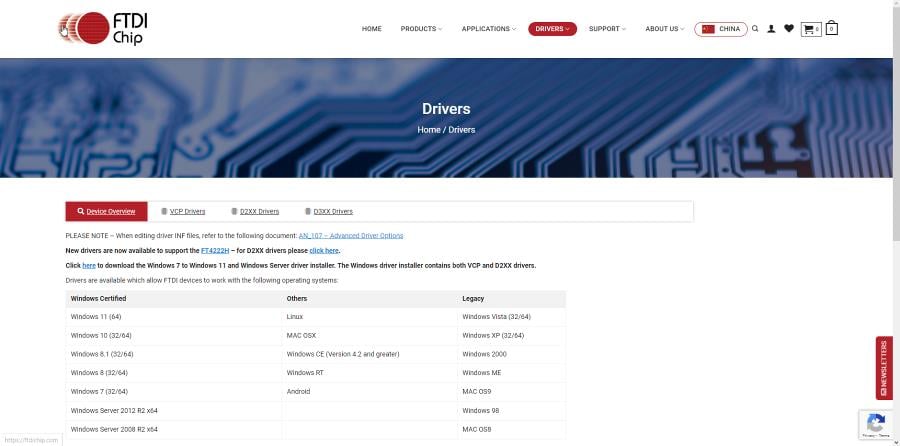
- Start by going to the FTDI driver download center.
- Click the link shown in the image to download the FTDI driver installer for Windows.
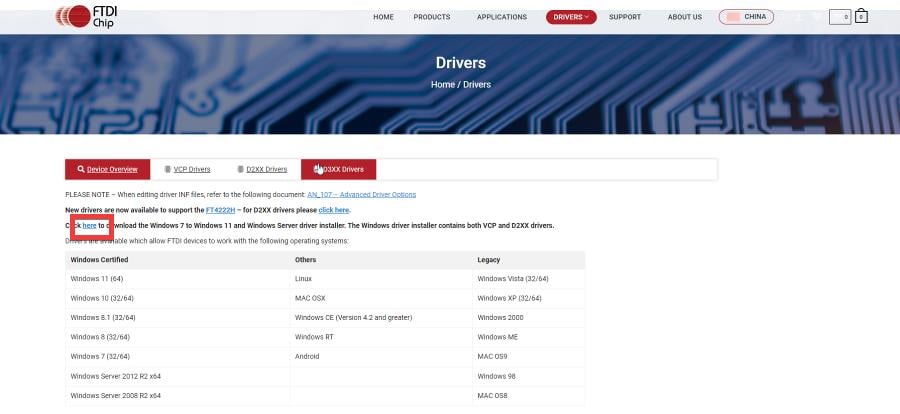
- This file that you will be downloading is a package that contains all of the drivers for FTDI VCP and D2XX drivers. If you don’t want to download drivers file by file, this method is highly recommended, especially if you have multiple FTDI devices.
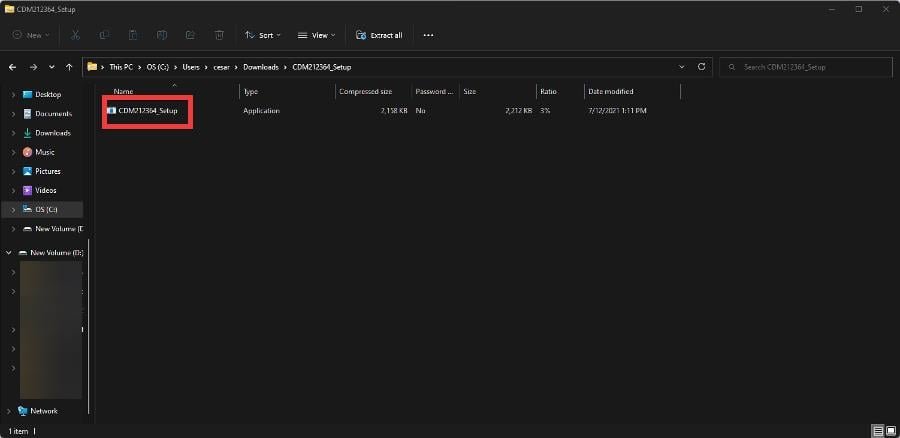
- Go to the downloaded file’s location and double-click it to begin the installation.
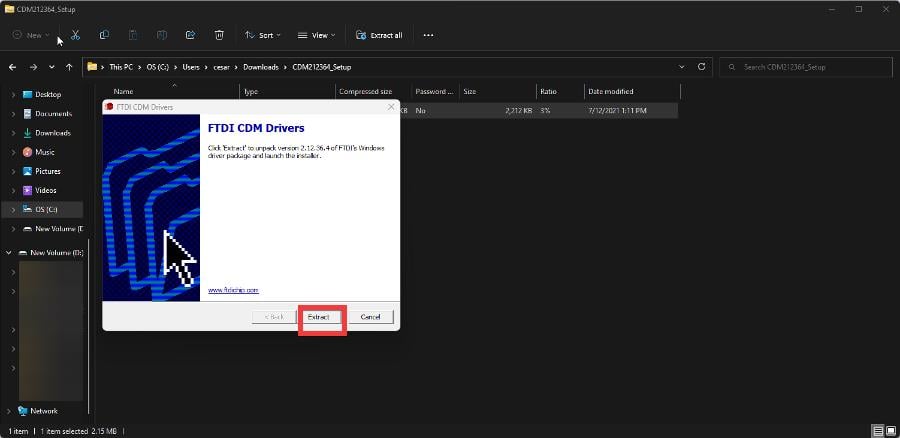
- Click Extract in the installation wizard.
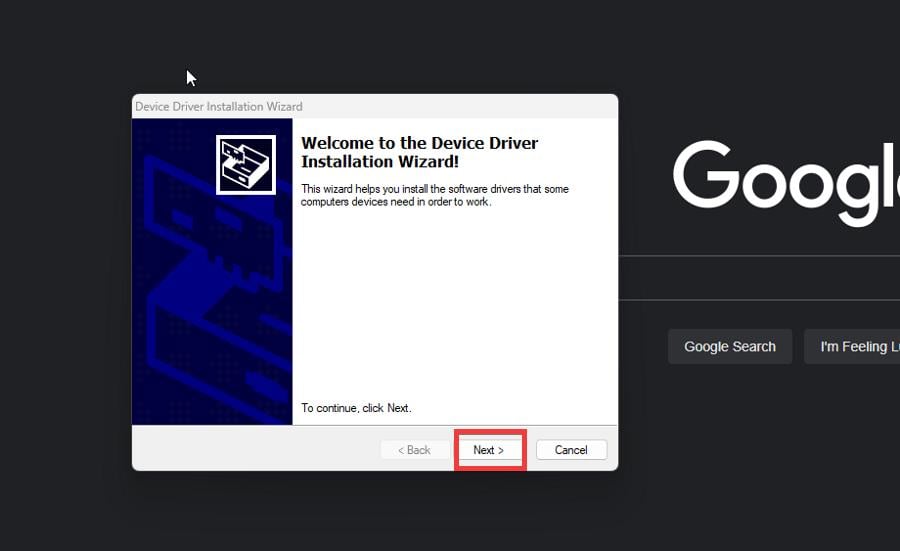
- Click Next on the installation wizard.
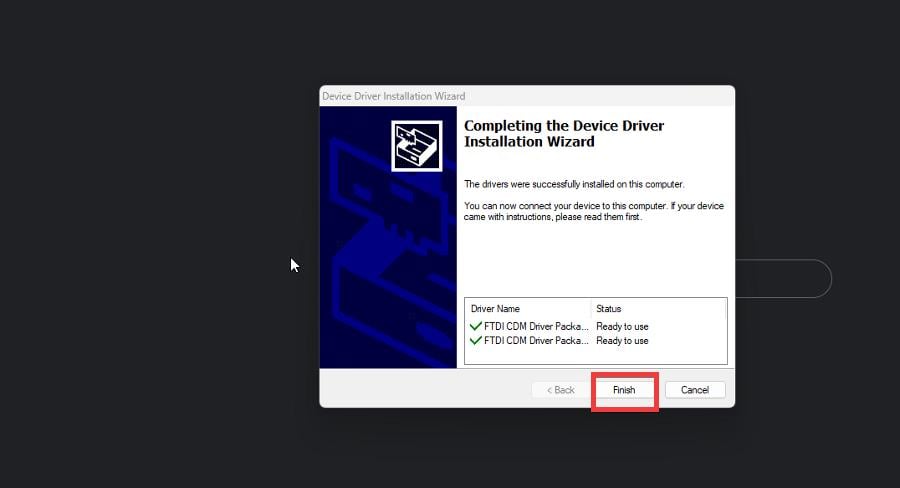
- Follow the instructions on the installation wizard and click Finish.
Having trouble with the D2XX runtime? See our guide to fix FTD2XX.DLL errors on Windows for quick steps.
3. Update automatically with a specialized tool
Sometimes, the most reliable option to download and update FTDI drivers, it’s to use specialized software that scans, finds, and brings up-to-date any outdated drivers on your device. We prefer this solution since it’s safer and faster than manually installing drivers.
- Download and install the Outbyte Driver Updater app.
- Launch the software and wait for the app to detect all incompatible drivers.
- Now, it will show you a list of all outdated drivers to select the ones to Update or Ignore.

- Click on Update & Apply Selected to download and install the latest versions.
- Restart your PC to ensure the applied changes.

Outbyte Driver Updater
Maintain your device healthy by letting OutByte Driver Updater find the latest driver options.What is an FTDI driver?
FTDI stands for Future Technology Device International Limited and is a Scottish semiconductor device company that specializes in USB technology. It develops and creates devices and cables that convert old communication standards, like RS-232, into more modern USB signals.
The company provides a lot of legacy support for modern computers so that the machines of the past don’t lose their files. In order to have that support, you’ll need to download a driver from FTDI’s database.
FAQ
The FTDI driver allows your computer to communicate with USB-to-serial converter devices. It’s often used for programming cables, embedded systems, and other hardware interfaces.
You can install the FTDI driver by downloading it from the official FTDI website and running the setup file. Windows Update may also install it automatically once the device is connected.
If your FTDI device isn’t detected, the issue could be an outdated driver or wrong COM port configuration. Reinstall the driver, try a different USB port, or check Device Manager for hardware conflicts.
Yes, FTDI drivers are compatible with Windows 11. Always download the latest version from the FTDI website to ensure stability and avoid unsigned driver errors.
How do I use FTDI drivers on Windows 10/11?
Once you download the FTDI drivers, you don’t have to do anything. The purpose of these drivers is to ensure that your FTDI device works properly. In this case, then you don’t have to do anything else.
If there are problems with the device, we recommend uninstalling the driver and reinstalling it. That, and reboot your computer.
Feel free to leave a comment below if you have any questions regarding the above process. Also, do not hesitate to comment about guides you’d like to see or information on other web browsers.


Read our disclosure page to find out how can you help Windows Report sustain the editorial team. Read more


Improve this guide


User forum
0 messages