
How to Use Microsoft Store to Install and Update Apps on PC


 3 min. read
  Published on

If you’re new to Windows or just upgraded to Windows 11, learning how to use Microsoft Store can help you get the most out of your PC. Follow the steps below to start exploring and installing content safely.
Table of contents
How to Use the Microsoft Store?
1. Open Microsoft Store
- Click the Start button on your taskbar.
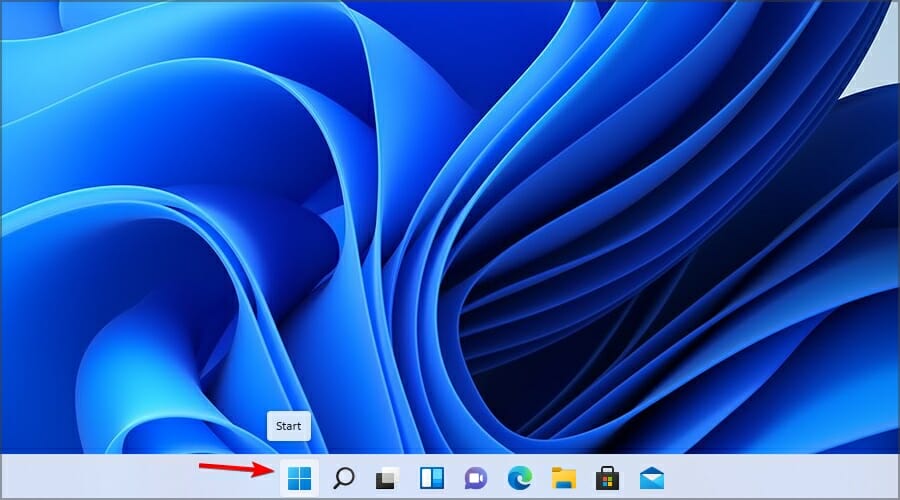
- Type Microsoft Store in the search bar.
- Click the app icon to launch it.

If you cannot find or open it, see how to install Microsoft Store on Windows 11.
2. Sign In to Your Microsoft Account
- In the top-right corner, click your profile icon.
- Select Sign in.
- Enter your Microsoft account email and password.
- If you don’t have an account, click Create one to set it up.
3. Browse or Search for Apps
- Use the Search bar at the top to find a specific app or game.

- Or click Apps, Gaming, or Movies & TV from the sidebar to browse categories.
- Check the app’s details, including reviews and ratings.
If you prefer downloading programs manually, you can also download Microsoft Store apps without using the Store.
4. Install an App or Game
- Click on the app you want to install.
- Select the Get or Install button.

- Wait for the download to finish; it will automatically install.
- Once installed, click Open to launch the app.
5. Update Installed Apps
- Open the Microsoft Store.
- Click your profile icon and select App settings.
- Choose Library from the sidebar.
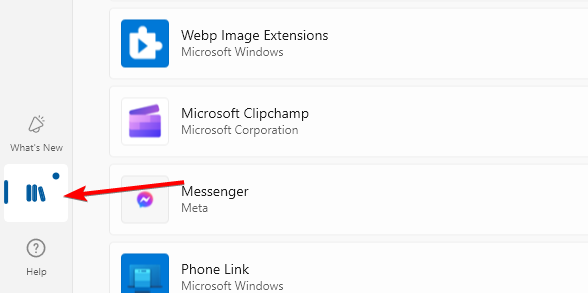
- Click Get updates to update all apps at once.
6. Manage Purchases and Subscriptions
- Click your profile icon again.
- Select My Library or Payment methods.
- View all your purchased content or manage your payment options.
If your Store apps are not updating correctly, it might help to reinstall Microsoft Store.
Why Use Microsoft Store
- All downloads are verified and safe.
- Apps automatically update in the background.
- You can sync apps across your Windows devices.
- Easy access to both free and premium apps in one place.
FAQs
You can browse without signing in, but you must log in to download or install apps.
No, some are paid, while others are free or offer in-app purchases.
Yes, right-click any installed app and select Uninstall.
You can open the app and view your library, but downloading or updating apps requires an internet connection.
Conclusion
Using Microsoft Store is the easiest and safest way to discover, download, and manage your Windows apps. Whether you’re installing productivity tools, games, or movies, everything you need is just a few clicks away.

Read our disclosure page to find out how can you help Windows Report sustain the editorial team. Read more


Improve this guide


User forum
0 messages