
How to install the USB driver on Windows 10 [Easy Guide]


 3 min. read
  Updated on
Key notes
- In order to use your USB properly, you most likely know that installing the device driver is the essential step you need to perform.
- You can consider performing the procedure manually by simply using Device Manager.
- Another easy-to-follow option involves giving a try to the Hardware Update wizard.
- The USB driver can be easily installed on Windows 10 using the support of dedicated software, which can generate valuable benefits.

Drivers are the most important software components of our computer. So, installing them optimally represents the main step we should consider.
If you want to easily install the Windows 10 USB driver, you can choose from a wide range number of alternatives. Fortunately, you don’t need to be trained to perform them.
This article will show you some of the best options you should try to install your USB driver on Windows 10.
How can I easily install the USB driver on Windows 10?
1. Use Device Manager.
- Open Device Manager.
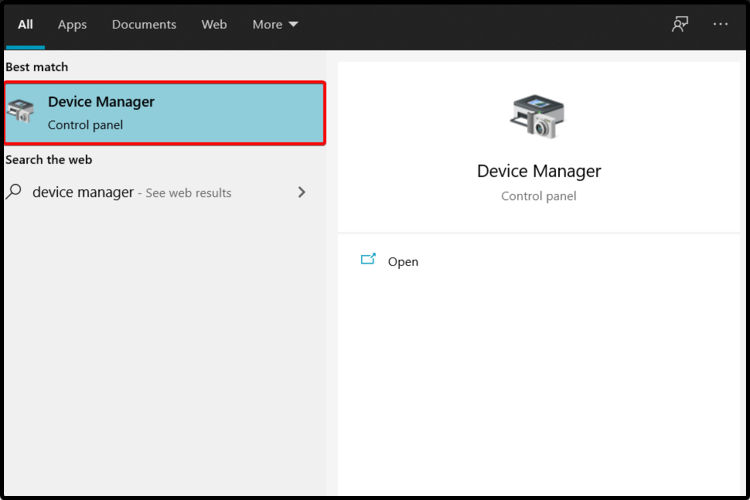
- Expand Universal Serial Bus controllers, right-click on the option you need, then select Properties.

- Select the Driver tab, then click on Update Driver.

- Select Browse my computer for driver software.

- Click on Let me pick from a list of available drivers on my computer.

- Select your needed option, then click on Next.
- Once the installation is completed, restart your PC.
2. Try Hardware Update wizard
- Press Windows key + R keyboard shortcut.
- In the pop-up window, type hdwwiz.exe, and click on OK.

- Select Browse my computer for driver software and click on Next.
- Click on Browse, then locate the USB driver folder.
- Finally, click on Next to install the USB driver.
In case of not being able to complete the first step due to Windows button errors, we are here to help you. You simply need to take a look at this guide dedicated to Windows Key not working issues.
If your issue involves devices that need serial-to-USB communication, you might also require the FT232R USB UART driver, which ensures proper connectivity for many hardware peripherals.
Similarly, boards that rely on the CH340 chip will need the correct CH340 driver for Windows 10 to establish a stable connection.
3. Use third-party software
While the USB driver installation on Windows 10 can be done manually, using third-party software allows you to perform it automatically, by following some easy steps.
The recommended alternatives above are useful and efficient, but can also be time-consuming. On the opposite, the support of dedicated driver updating software is able to save you much more time.
With such tools, you can update all your drivers in just a few clicks.
The suggestions listed above are some of the best you can find. Not only that any of them will prove efficient, but they are also easy to use.
Also, if your USB device is not recognized in Windows 10, feel free to check a full fix guide and apply the presented tips. You’ll most likely be able to solve your issue in no time.
Because your opinion is important to us, don’t hesitate to leave a comment in the section below, letting us know which option worked best for you.

Read our disclosure page to find out how can you help Windows Report sustain the editorial team. Read more


Improve this guide


User forum
0 messages