
Is Memory Integrity Enabled by Default in Windows 11 25H2?


 3 min. read
  Updated on

Memory integrity (also called Core Isolation in Windows Security) helps protect your PC against malicious code injection. Many users are unsure if it is enabled or disabled by default in Windows 11 24H2 and the latest 25H2 release.
Table of contents
What is the Default Status of Memory Integrity?
In Windows 11 24H2, memory integrity is enabled by default if BIOS or UEFI virtualization (SVM mode) is turned on.
For 25H2, the behavior is similar. However, some users report that after installation, memory integrity appears disabled and must be turned on manually.
Most modern systems ship with TPM and Secure Boot already enabled, but the BIOS setting often determines whether Core Isolation will show up.
For more details, see this guide on what to do if memory integrity is off in Windows 11.
Why Memory Integrity Matters?
- Anti-cheat systems like Riot’s Vanguard in Valorant and League of Legends monitor Windows security settings.
- If memory integrity is disabled, it may raise suspicion levels and cause conflicts.
- On modern PCs, enabling memory integrity rarely impacts performance.
- Older, less powerful systems may struggle with it, which is why Microsoft leaves the option adjustable.
How to Check and Enable Memory Integrity
Follow these steps to check if memory integrity is active and enable it when needed:
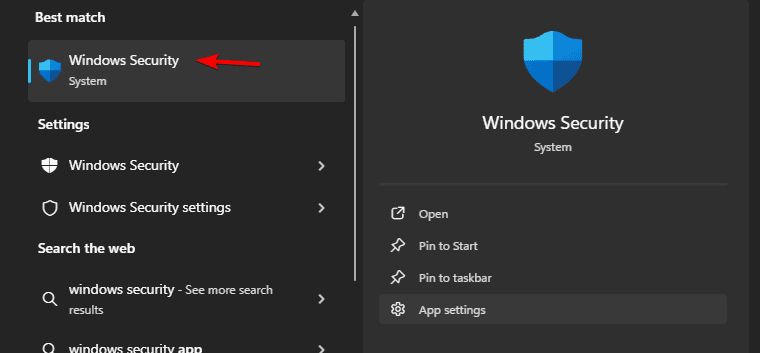
- Open the Start menu and select Windows Security.
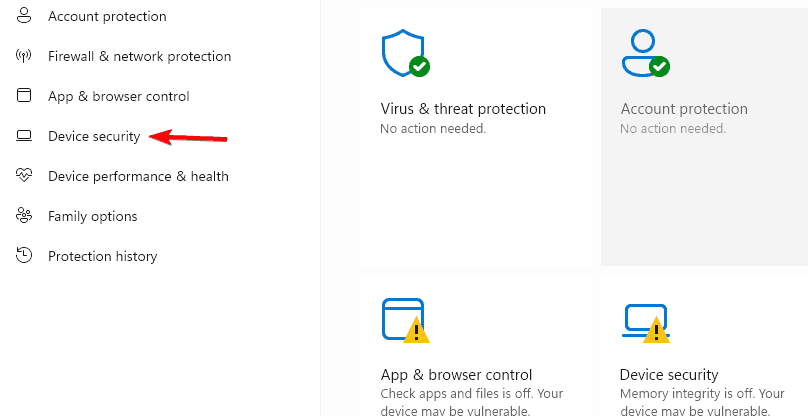
- Click Device Security.
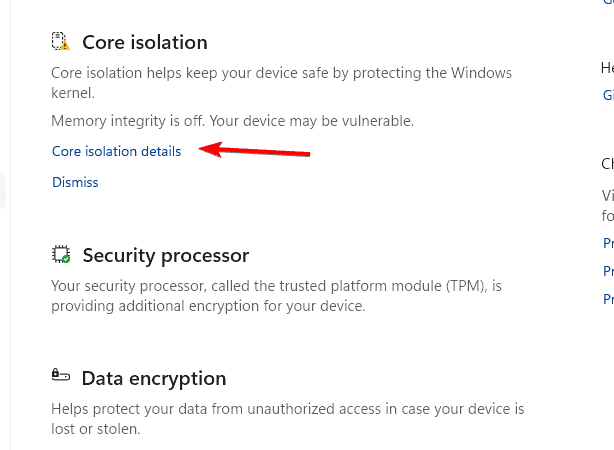
- Select Core Isolation details.
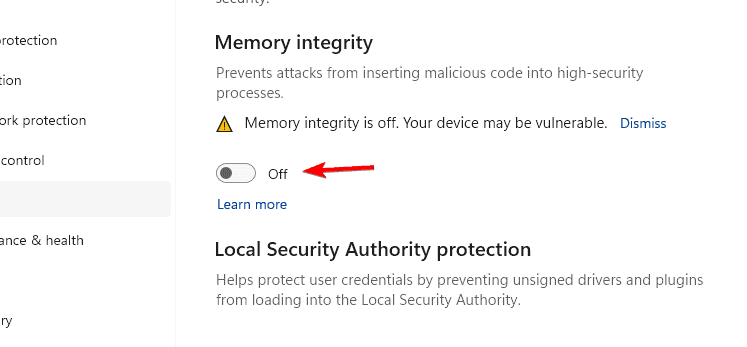
- Find the Memory Integrity toggle.
- If it is off, switch it to On and restart your PC.
If the setting is unavailable, see how to fix when memory integrity is greyed out in Windows 11.
Enable SVM Mode in BIOS if Memory Integrity Is Missing
If the option does not appear in Windows Security, SVM (Secure Virtual Machine) mode may be disabled in BIOS. To enable it:
- Restart your PC and enter BIOS/UEFI setup (press Del or F2 during boot).
- Go to the Advanced or CPU Configuration tab.
- Locate SVM Mode and set it to Enabled.

- Save your changes and reboot.
- Return to Windows Security > Device Security. Memory integrity should now appear.
Troubleshooting Memory Integrity Turning Off Automatically
Some users report that memory integrity enables by default but later switches off. This usually happens due to driver incompatibility.
- Update drivers to the latest version.
- Check Windows Security for a list of incompatible drivers.
- Once updated, re-enable memory integrity to keep it active.
If the issue comes from faulty or outdated drivers, a related fix is explained in this article about ftdibus.sys driver errors.
FAQs
This usually happens when a driver is incompatible. Updating or replacing the driver should allow you to re-enable memory integrity.
On older PCs with limited resources, disabling it may reduce system overhead slightly. On modern systems, performance differences are minimal.
This typically occurs if SVM (Secure Virtual Machine) mode is disabled in BIOS. Enabling it will make memory integrity visible.
Conclusion
Memory integrity is enabled by default in most Windows 11 24H2 and 25H2 setups where virtualization is active in BIOS. If it is missing, enable SVM mode to make it visible.
For better security and compatibility with modern anti-cheat systems, it is best to keep memory integrity turned on, unless you experience performance issues on older hardware.

Read our disclosure page to find out how can you help Windows Report sustain the editorial team. Read more


Improve this guide


User forum
0 messages