
How to Fix a Lagging Mouse on Windows: 8 Tested Ways
Find how to improve the mouse performance quickly


 4 min. read
  Updated on

When your mouse lags, the cursor moves slowly or jumps around, making it hard to click, drag, or control tasks like browsing, editing, or gaming smoothly.
Mouse lag is usually caused by low battery, signal issues, dirty sensors, outdated drivers, or high system load.
Follow the steps below to fix this issue withing minutes.
How to fix mouse lag
1. Update the mouse driver
1. Right-click the Start button and select Device Manager from the list.

2. Select Mice and other pointing devices and double-click your mouse.

3. Open the Driver menu, then click Update driver.

4. In the next window, select the Search automatically for drivers option.

5. If there are any new drivers, the system will install them, and you will need to restart your PC for the changes to take effect.
6. If you get the message that you already have the best drivers for your device, you can click the Search for updated drivers on Windows Update.

7. You will be redirected to the Windows Update section. Select View optional updates.

8. Click on Driver updates to expand the section and look for any mouse driver.

9. If you find one, check its box from the left and hit the Download and install button.

If your mouse is lagging, installing the correct mouse driver is likely to solve the problem.
In most cases, Windows 10 will automatically install the default mouse driver, and while that driver usually works, sometimes specific issues can occur.
You can install drivers via Device Manager, with the help of Windows Update. This consists of a manual update.
If you’re using a branded mouse, check the manufacturer’s website and download the latest drivers for your mouse model.
If you want to avoid going through all these steps and ensure that the correct drivers are installed, you could try using powerful driver updater software.
This tool will help any user who needs to update or find missing drivers on a Windows OS computer.
2. Enable hardware-accelerated GPU scheduling
- Click the Start menu and select the Settings icon.

- Select System.
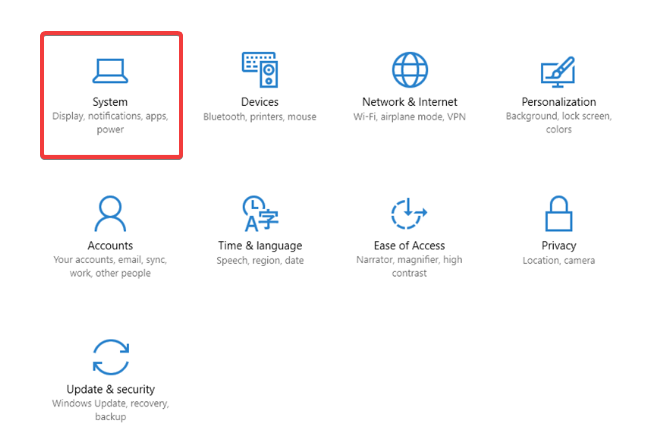
- Select Display from the left pane, and click on Graphic Settings from the left.

- Toggle on the switch for Hardware-accelerated GPU scheduling.

3. Edit USB selective suspend settings
- Right-click on the battery icon and select Power Options.

- On the left pane, select Change when the computer sleeps.

- Click on Change advanced power settings.

- Click USB settings, expand the USB selective suspend setting, and change both options to Deactivated.

This solution will be helpful if you use a Bluetooth mouse.
4. Enable / Disable the Scroll Inactive Windows option
- Click the Start button and select Settings.

- Select the Devices option.

- Next, click on Mouse from the left pane.

- Now locate the Scroll Inactive Windows option and disable/enable it.

- Try disabling and enabling this option a few times and check if the issue is resolved.
The tricky part of this solution is that some users may have difficulty accessing the Setting app. But this can be resolved in a few clicks.
5. Change the PalmCheck threshold in Windows
- Press the Win + X keys and choose Settings from the list.

- Choose the Devices option from the list.
- Next, click on Touchpad from the left pane and select Settings under Synaptics Touchpad.

- Now get the PalmCheck slider to the left.
6. Set the touchpad sensitivity
- Click on the Start button and select the Settings app.
- Now select Devices from the list.
- Select Touchpad from the left pane.

- Click on the Touchpad sensitivity menu and change it to High sensitivity or Most sensitive.

- If you’re not using the touchpad, you can disable it from the same window by toggling off the Touchpad option from the top.

7. Disable the NVIDIA High Definition Audio device
- Click on Start and select Settings.
- Now choose the Apps option.

- Look for the GeForce Experience app, click on it and select Uninstall.
- Right-click the Start button and select Device Manager.

- Locate NVIDIA High Definition Audio under Sound, video and game controllers; right-click it and choose Disable.

 NOTE
NOTE
Try this step only if there is no other solution to your mouse lagging issue.
To ensure that no lasting damage is possible, ensure that you have quick access to the Device Manager to activate the devices quickly.
8. Change the USB Hub power management options
- Right-click the Windows Start button and select Device Manager from the list.
- Double-click the USB Hub device to open its properties.

- Go to the Power Management tab and uncheck Allow the computer to turn off this device to save power. Click OK to save the changes.

Remember to check your USB port. If it doesn’t work as expected, you can fix your USB ports in a few clicks.
What causes a mouse to lag?
Connection problems
Mouse lag often happens when the connection is weak. This can happen with wireless or wired mice if the Bluetooth signal is far away, the cable is tangled, the USB port is faulty, or other devices interfere.
Low battery
If your mouse is wireless, low batteries can cause lag. Even if there’s no warning light, try changing the batteries.
Outdated drivers
Sometimes your mouse needs updated drivers to work smoothly. If you don’t update them, your mouse might lag or not perform well.
Wrapping up
If you have erratic mouse movements, it’s possible that the mouse is damaged or you’re having problems with your USB port. Connecting the device to a different port or PC is recommended in such a case.
For other related issues, check out guides on mouse not moving to a second screen, cursor disappearing, mouse jumps, and mouse keeps clicking.
Updating the mouse software can help, especially if you have mouse lag in CS:GO or other games or disable Palmcheck altogether.
This issue is reported in other games, and Call of Duty: Cold War also has mouse problems. Hopefully, the solutions from this guide will help you fix that.
Before you leave, don’t miss our guide on the mouse cursor stuck in the corner to see how to fix it.
If you have any questions or, on the contrary, some valuable solutions, drop them in the comments section below.

Read our disclosure page to find out how can you help Windows Report sustain the editorial team. Read more


Improve this guide


User forum
37 messages