
How to Remove McAfee WebAdvisor on Windows 11 Fast


 3 min. read
  Published on

McAfee WebAdvisor often comes preinstalled with McAfee antivirus or bundled with third-party software. While it aims to protect you from malicious sites, many users find it unnecessary or intrusive. Here’s how to completely remove McAfee WebAdvisor from your PC.
Table of contents
How to Uninstall McAfee WebAdvisor in Windows 11?
Use the Settings app
- Press Windows + I to open Settings.
- Click Apps, then select Installed apps or Apps & features.
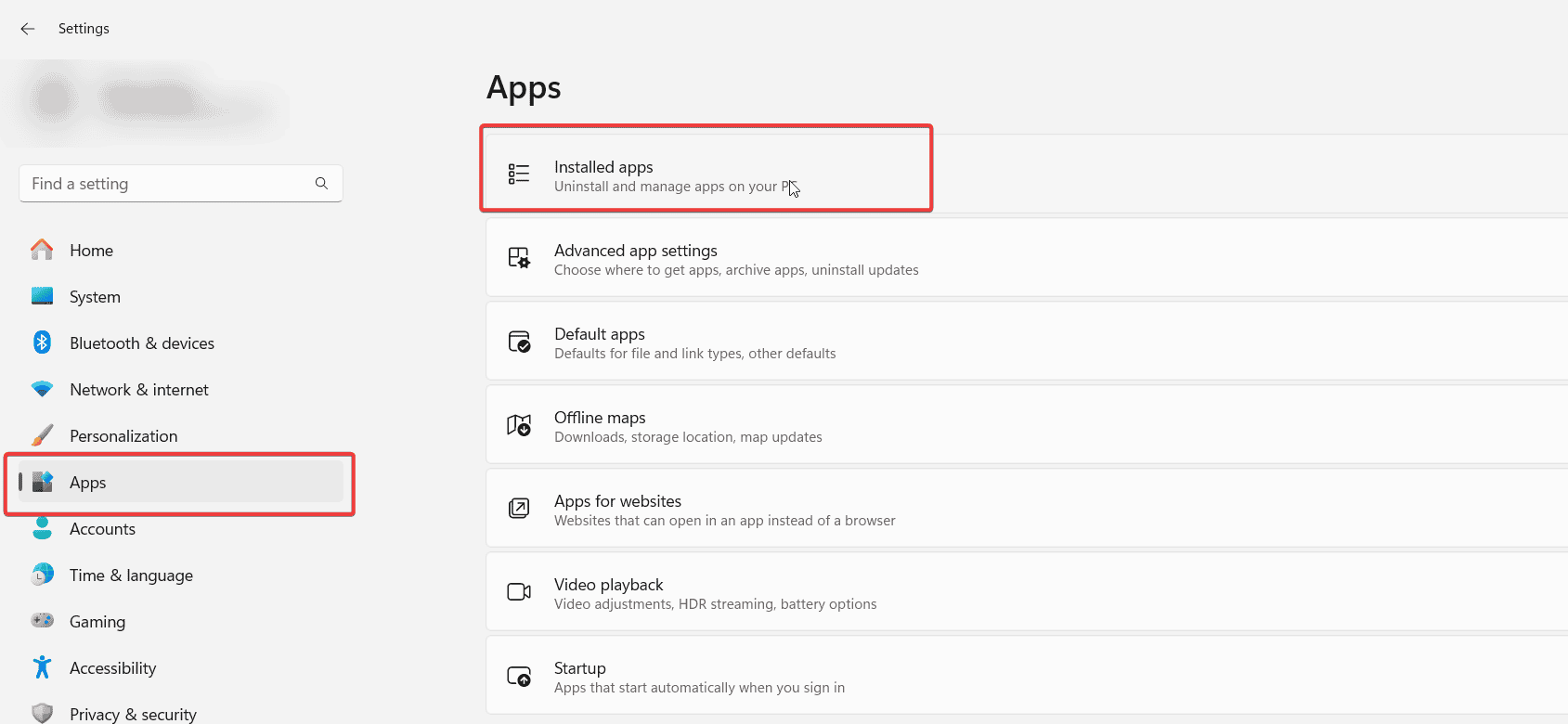
- Scroll or search for McAfee WebAdvisor.
- Click the three dot menu and select Uninstall.
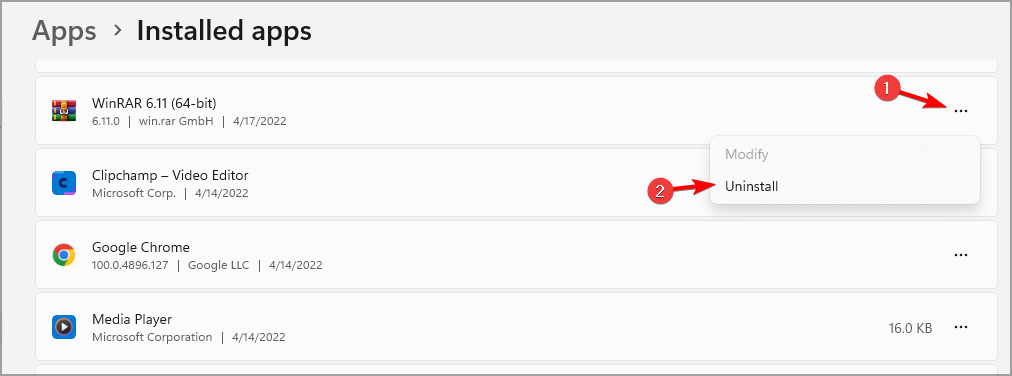
- Follow the on screen prompts to finish removal.
- Restart your computer.
If you run into issues during uninstallation, see this guide: McAfee removal tool doesn’t work.
How to Remove McAfee WebAdvisor Extension From Your Browser
Google Chrome
- Open Chrome and click the three dots in the top right.
- Go to Extensions > Manage Extensions.

- Find McAfee WebAdvisor and click Remove.

- Confirm removal.
Microsoft Edge
- Open Edge and click the three dots in the top right.
- Choose Extensions > Manage extensions.
- Locate McAfee WebAdvisor.
- Click Remove and confirm.
Mozilla Firefox
- Open Firefox and click the menu in the top right.
- Select Add ons and themes > Extensions.
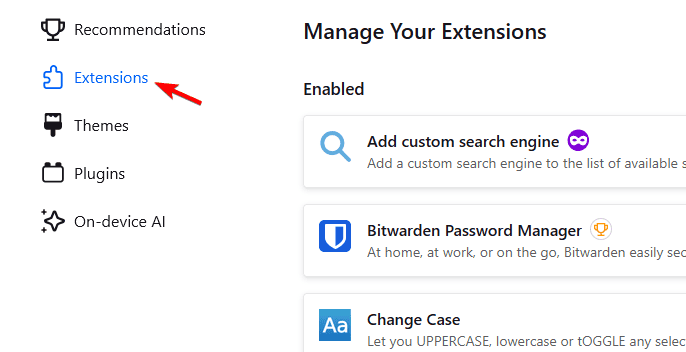
- Find McAfee WebAdvisor.
- Click Remove.
If Firefox gives you trouble, try this fix: McAfee WebAdvisor not working in Firefox.
How to Disable McAfee WebAdvisor Instead of Removing It
- Right click the McAfee icon on the taskbar.
- Select Change settings > WebAdvisor options.
- Toggle off Enable WebAdvisor.
What Is McAfee WebAdvisor?
McAfee WebAdvisor is a browser add on that warns you about potentially unsafe websites and shows safety ratings in search results for Chrome, Edge, and Firefox. If you notice unwanted changes to search or new tab behavior, review this guide: McAfee keeps changing default search engine.
Why You Should Remove McAfee WebAdvisor
- It can slow down browsing.
- Modern browsers and Windows Defender already provide built in protection.
- Some users see pop ups or redirects.
- Other tools offer real time protection with less impact.
FAQs
Yes. Uninstalling it will not harm your PC. Windows Defender or your main antivirus continues to protect your system.
It may return during McAfee antivirus updates. Remove WebAdvisor and the main McAfee suite together if you do not plan to use them.
No. It removes only the browser component.
Yes. You can add it again from McAfee’s official site if you change your mind.
Conclusion
McAfee WebAdvisor is optional. If it slows your browser or changes search behavior, removing it and relying on built in protections is a quick way to improve speed and reduce interruptions.

Read our disclosure page to find out how can you help Windows Report sustain the editorial team. Read more


Improve this guide


User forum
0 messages