
How to Remove OneDrive from Windows 11 Completely
Unlinking the account may be the fastest solution


 4 min. read
  Updated on

Want to remove OneDrive from Windows 11, but it keeps coming back or syncing files? You’re not alone. Many users want to permanently remove OneDrive from Windows 11, either to free up system resources or to switch to another cloud solution.
Below are the most effective ways to completely uninstall OneDrive on Windows 11.
Methods to Fully Remove OneDrive on Windows 11
Table of contents
1. Uninstall OneDrive via Settings (Basic Removal)
This is the easiest method for most users.
- Press Win + I to open Settings
- Go to Apps > Installed apps
- Search for OneDrive
- Click the three dots > select Uninstall
- Confirm the uninstallation

✅ Good for basic users who want to stop syncing but don’t mind leftover files or settings.
If you’re still getting notifications after uninstalling, you might want to learn how to disable OneDrive pop-ups in Windows 10 and 11.
2. Remove OneDrive Using Command Prompt (Complete Removal)
This will completely uninstall OneDrive from your system.
- Press Win + S, type cmd, right-click it and select Run as administrator
- Run the following command: taskkill /f /im OneDrive.exe
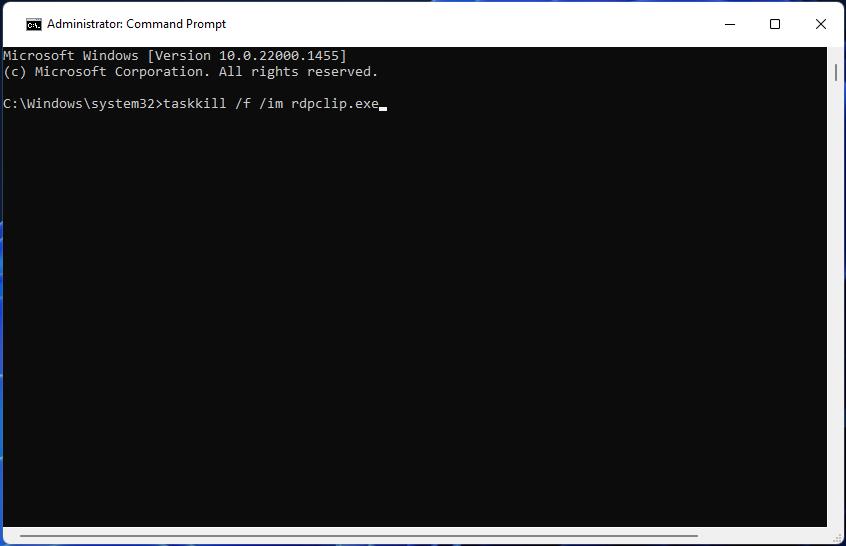
- Then execute: %SystemRoot%\System32\OneDriveSetup.exe /uninstall
For 64-bit Windows, use:
%SystemRoot%\SysWOW64\OneDriveSetup.exe /uninstall
✅ Ideal if the Settings method doesn’t work or you want a deeper cleanup.
This method is particularly useful if OneDrive keeps launching unexpectedly or even opens in two instances on your system.
3. Delete OneDrive Folders and Registry Entries (Advanced Users)
To fully remove OneDrive from Windows 11, also clean up leftover files and registry keys.
- Delete these folders (if they still exist):
- C:\Users\<YourUsername>\OneDrive
- C:\OneDriveTemp
- Remove registry keys (caution):
- Open Registry Editor (
regedit) - Navigate to: HKEY_CLASSES_ROOT\CLSID
- Search for and delete any entries related to OneDrive
- Open Registry Editor (
⚠️ Backup your registry first. Registry changes can affect system stability.
Still seeing cloud-linked files or slow syncing before removal? You might’ve experienced slow OneDrive upload speeds on Windows, which is another reason many users look to uninstall it.
4. Disable OneDrive via Group Policy (Pro & Enterprise Only)
If you’re using Windows 11 Pro or Enterprise:
- Press
Win + R, typegpedit.msc, press Enter - Navigate to: Computer Configuration > Administrative Templates > Windows Components > OneDrive
- Double-click Prevent the usage of OneDrive for file storage
- Set it to Enabled > click Apply and OK
✅ This stops OneDrive from launching or syncing, even if it’s installed.
This step is particularly helpful if OneDrive was used for automatic cloud backups, like those from apps such as WhatsApp storing files to OneDrive.
5. Use PowerShell to Force Uninstall OneDrive
If all else fails, PowerShell can help when you can’t uninstall OneDrive on Windows 11.
- Open PowerShell as Administrator
- Run: mathematicaCopyEdit
Get-AppxPackage *onedrive* | Remove-AppxPackage
✅ Useful when dealing with stubborn or reinstalled OneDrive apps.
Note that this won’t affect files you’ve backed up through other devices. If you’re using OneDrive on mobile, you may run into issues like files not showing up on iPhones or iPads.
Why Remove OneDrive from Windows 11?
- Reduce background activity and CPU usage
- Avoid accidental cloud syncing
- Reclaim local disk space
- Switch to another cloud service
Also, removing cloud processes like OneDrive can help reduce battery drain, especially if your PC is stuck in Battery Saver mode.
FAQs
Yes. You can reinstall it from the Microsoft Store or by running OneDriveSetup.exe again.
No. Your local files remain, and your cloud files are still available on onedrive.live.com.
It may be running in the background. Use Task Manager or Command Prompt to terminate the process before uninstalling.
Conclusion
Whether you’re trying to stop sync issues or just clean up your PC, it’s possible to fully remove OneDrive from Windows 11 using built-in tools or advanced methods. Start with the Settings app, and if needed, escalate to Command Prompt or PowerShell to permanently uninstall OneDrive. If you’re facing additional issues tied to OneDrive, several workarounds linked above may help resolve them too.

Read our disclosure page to find out how can you help Windows Report sustain the editorial team. Read more


Improve this guide



User forum
4 messages