
Remove Sticky Notes Preview on Windows 11: How to do it
This can be done with a single command


 2 min. read
  Published on

Dealing with the Sticky Notes Preview app on Windows 11 can be a bit of a hassle, especially if you didn’t intend to use it. If you’re looking to remove it, there are several methods you can try, and this guide will show you the best ones to use.
How can I remove Sticky Notes Preview on Windows 11?
1. Use the Settings app
- Open the Start Menu by clicking on Start on the taskbar.
- Click on Settings (gear icon).
- In the Settings window, click on Apps and then Installed apps.

- Click on the three dots next to Sticky Notes from the list of installed apps.
- Click on Uninstall and follow the on-screen instructions.

2. Use PowerShell
- Open the Start Menu by clicking on the Start button on the taskbar.
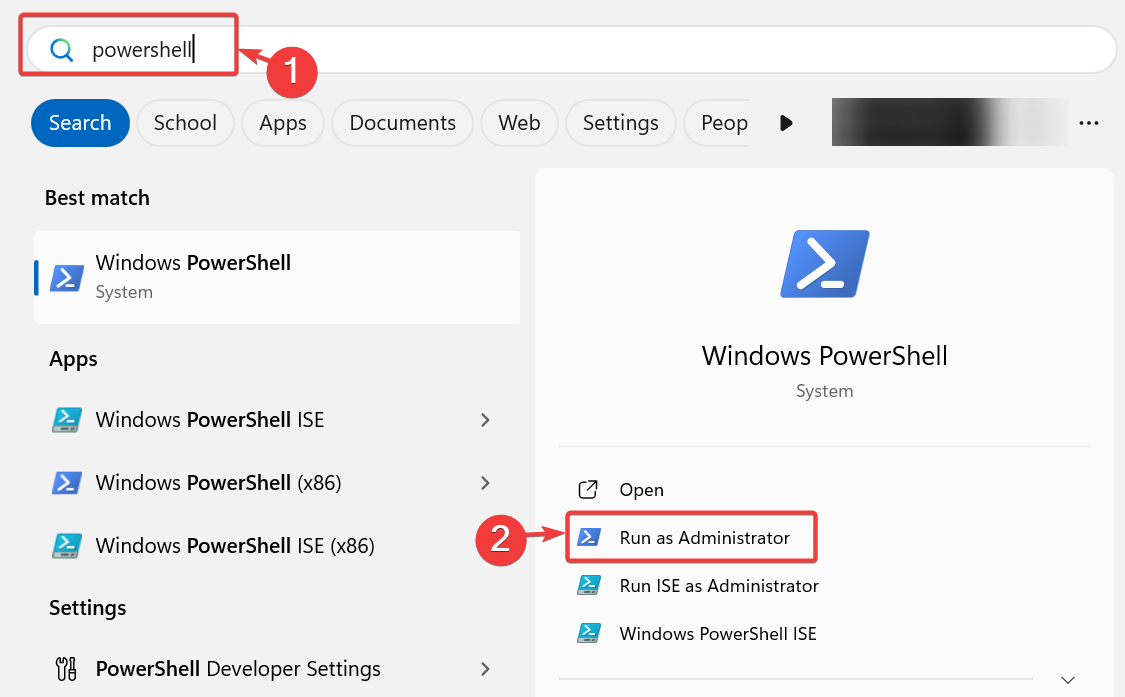
- Type PowerShell in the search bar.
- Right-click on Windows PowerShell from the search results and select Run as administrator.
- In the PowerShell window, type the following command and press Enter:
Get-AppxPackage MicrosoftStickyNotes | Remove-AppxPackage
As you can see, it’s pretty simple to remove Sticky Notes Preview on Windows 11, and you can remove it just like any other app.
Keep in mind that few users reported issues with this feature, and we already wrote a guide on what to do if Sticky Notes aren’t working on Windows 11, so don’t miss it.
We also have useful articles on how to recover deleted Sticky Notes or how to make Sticky Notes stay on top, so don’t miss them.

Read our disclosure page to find out how can you help Windows Report sustain the editorial team. Read more


Improve this guide


User forum
0 messages