
How to Reset the Outlook View to its Default Settings
Use the built-in settings or the dedicated command


 5 min. read
  Updated on

Outlook has become the go-to email manager and it needs to be uncluttered for a pleasant experience. An easy to do that is through a quick reset of the Outlook view.
If recent changes made working on Outlook difficult or the custom views changed the positioning of icons, it will hinder productivity. Why waste time getting used to the new interface when you can simply reset the view? Keep reading to find out all about it!
Table of contents
How do I customize or reset the current view?
1. Resetting the view with the built-in settings
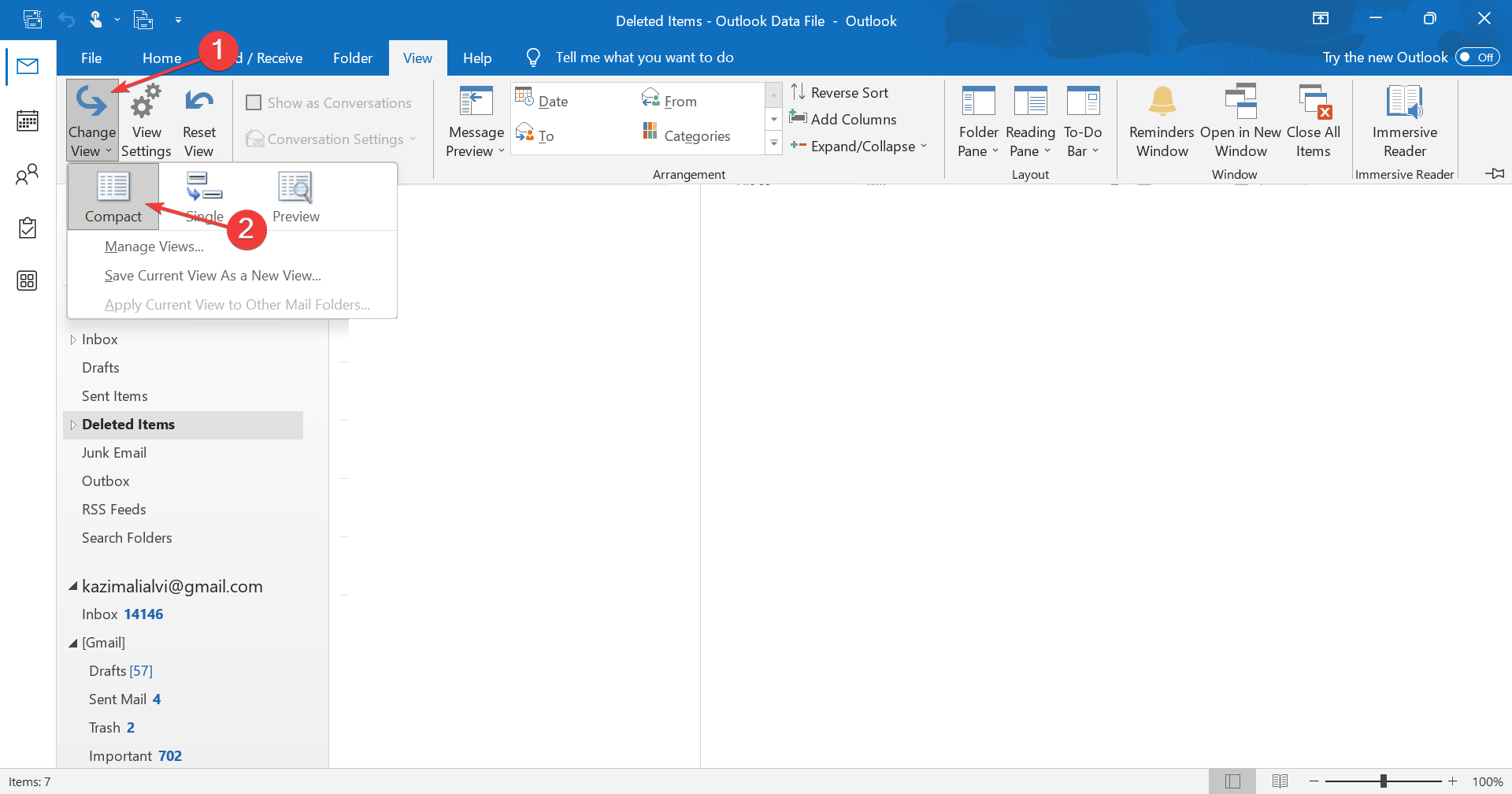
- Open Outlook, select the inbox you want to reset the view for, and click on View in the menu bar.
- Now, click on Change View, and then select Compact from the menu.
- Alternatively, you can click on the Reset View button.
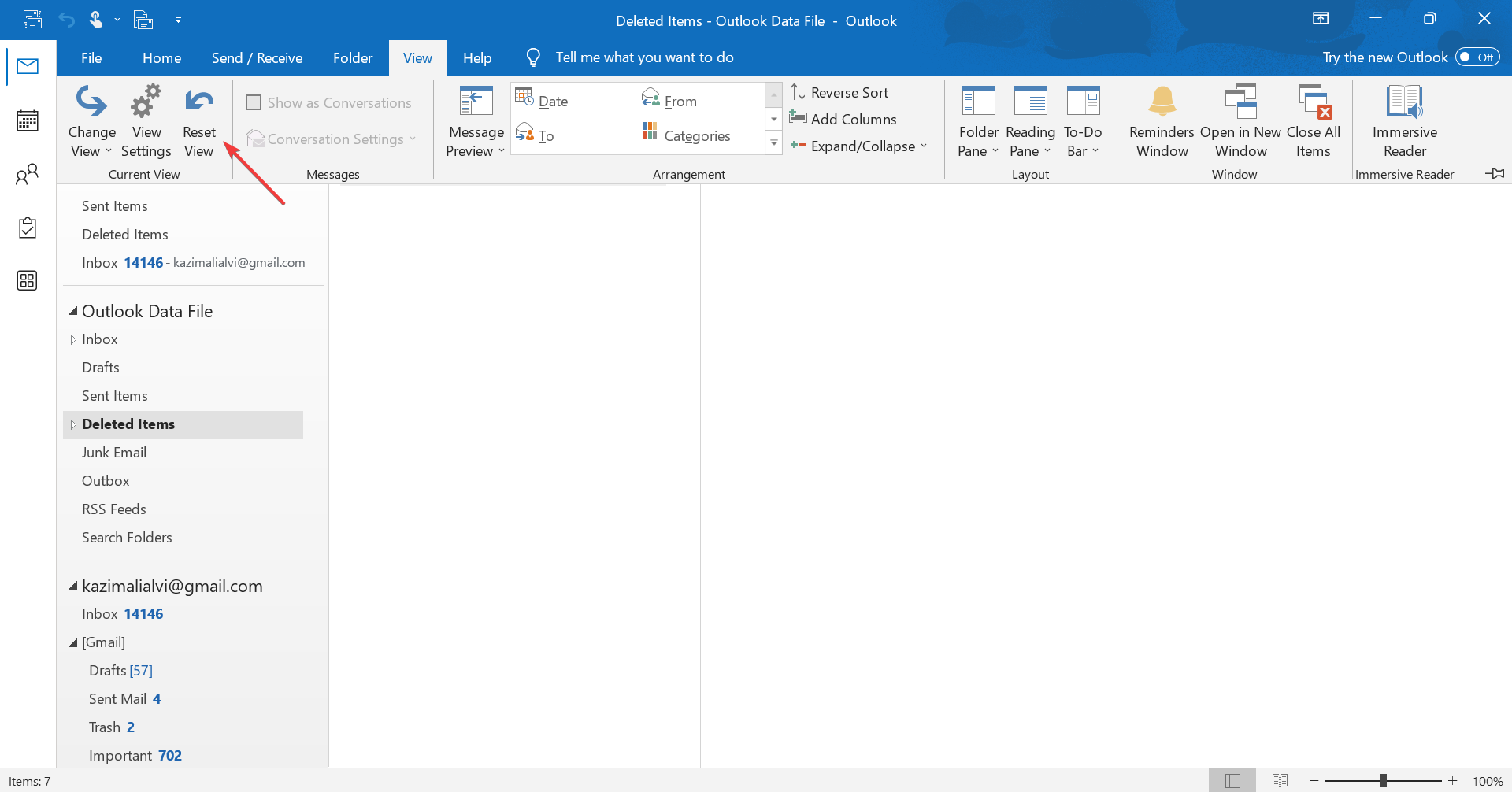
- Click Yes in the confirmation prompt.
In case the Reset view button is greyed out in Outlook, it’s either that the view is not set to Compact or no changes have been made to the original settings.
2. Resetting Outlook view with a command
- Press Windows + R to open Run.
- Now, paste the following command in the text field, and then hit Enter:
outlook.exe /cleanviews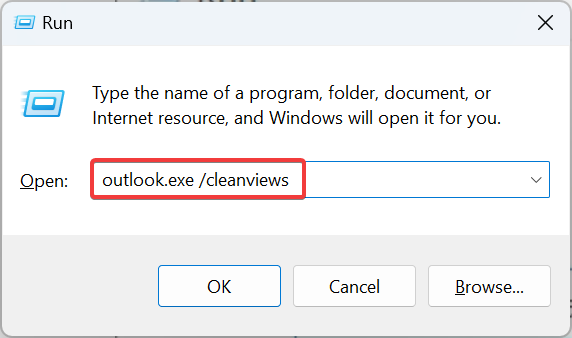
- This will relaunch Outlook, with all the custom views set to default.
The dedicated command clears all custom or mail views applied in Outlook.
3. Hiding the To-do bar
- Launch Outlook, and click View in the menu bar on the top.
- Now, click on the To-Do Bar option, and then select Off from the dropdown menu.
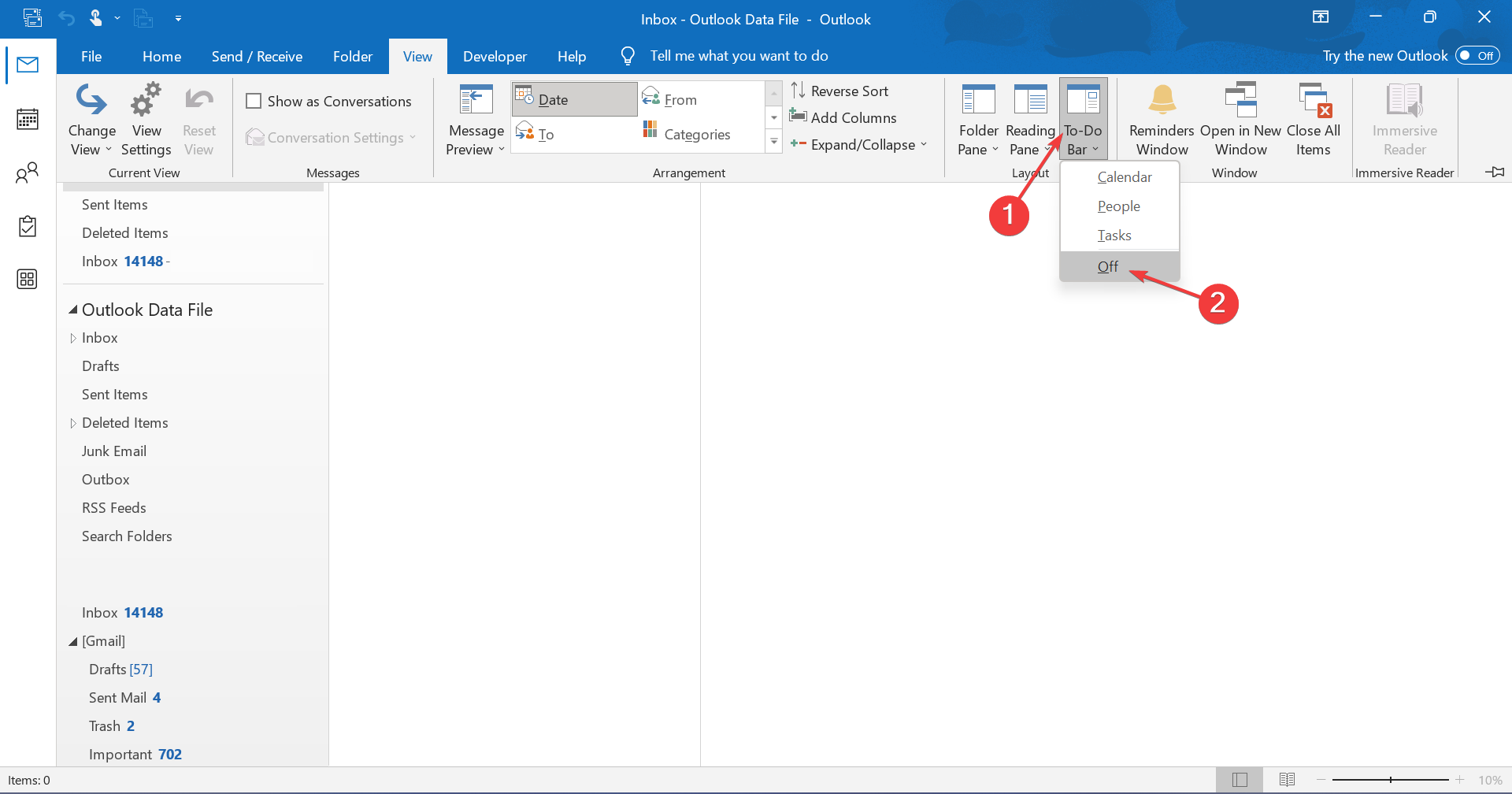
If you want to disable or hide the To-Do Bar in Outlook, it can easily be done via built-in settings. Remember, selecting Off will disable all three, Calendar, People, and Tasks.
4. Disable the installed add-ins
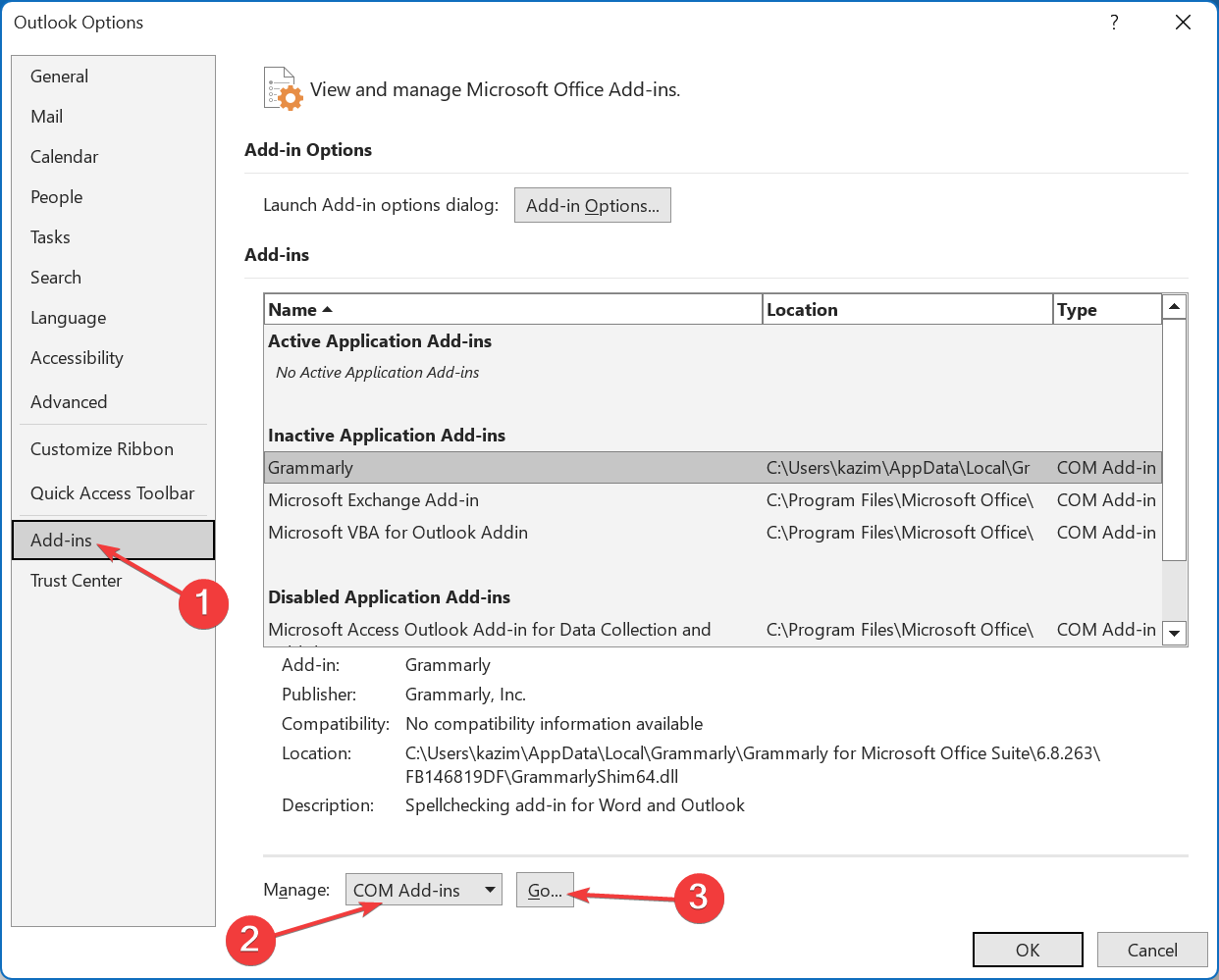
- Open Outlook, and then click the File menu near the top-left corner.
- Click on Options.
- Go to the Add-ins tab, select COM Add-ins from the dropdown menu, and click Go.
- Now, untick the checkbox next to the problematic add-in or all of them if you can’t identify the one that’s changing the Outlook view, and then click OK.
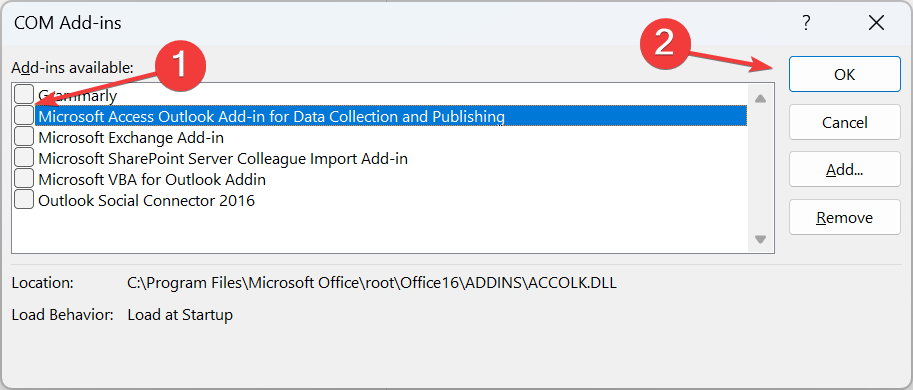
Though not exactly a way to reset the Outlook view, disabling Outlook add-ins may help fix things when the display, zoom level, or positioning of icons keeps changing. If you can’t disable the add-ins, launch Outlook in Safe Mode.
Why did my Outlook view change?
Here are the primary reasons you find the icons rearranged or the Outlook inbox view changed to small:
- Accidental changes: You could have inadvertently modified the display view settings, which changed the position of icons in Outlook.
- Running an outdated version: Often, running an outdated version of the app could introduce inconsistencies.
- Updates to Outlook: Some updates change the UI and if the Outlook view changed recently, it could be a new update to blame.
- Corrupt user profile: This can change the scaling settings, make the inbox look smaller or bigger, or even lead to Outlook view not showing email content.
- Conflicting add-ins or third-party applications: While add-ins are meant to enhance functionality, these can be the reason Outlook view changed itself.
FAQs
Your Outlook layout might have changed due to accidental customization, an update, or corrupted view settings. Resetting the view restores the default folder layout and removes unwanted filters or column changes.
Open Outlook and go to the folder you want to reset. Click the View tab, select Reset View, and confirm your choice. You can also use the shortcut Alt + V + R to quickly reset the current folder view.
Yes. Open Outlook, press Windows + R, type outlook.exe /cleanviews, and hit Enter. This command resets every folder’s view to the default layout across all mailboxes.
No. Resetting the view only restores the default layout and display settings. Your emails, folders, and account data remain safe and unaffected.
With the information presented here, you can reset the Outlook layout or view. Remember, resetting is the easier part. The trick lies in identifying what changed the view. And once you figure that out, the problem won’t appear again.
Often, a byproduct of misconfigured settings is Outlook view not showing the subject, but that can be fixed easily. And similarly, you can speed up Outlook when it’s running slow in no time.
Need to let colleagues know you are away? Set up an automatic reply in Outlook to keep everyone informed while you focus on fixing or customizing your layout.
For any queries or to share what triggered the change in Outlook view in your case, drop a comment below.

Read our disclosure page to find out how can you help Windows Report sustain the editorial team. Read more


Improve this guide


User forum
0 messages