
How to Roll Back a Windows Feature Update in Windows 11


 3 min. read
  Published on

Rollback Windows feature update steps are useful when a new release causes errors, slowdowns, or compatibility issues. This guide will show you how to safely return to your previous Windows version using several reliable methods.
Table of contents
How to Rollback Windows Feature Update?
1. Use Windows Settings
Use this when Windows still boots normally.
- Open Settings with Windows + I.
- Go to System then Recovery.
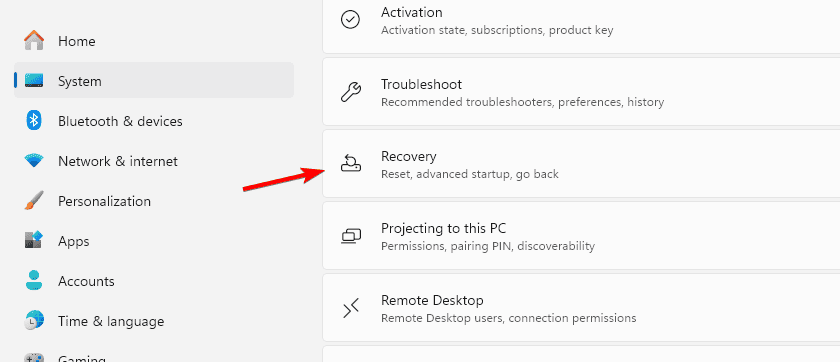
- Click Go back.

- Choose a reason and select Next.
- Follow the prompts to finish.
If you need help navigating update controls, see the detailed Windows Update settings guide.
2. Roll Back from Advanced Startup
Use this when Windows does not start correctly.
- Interrupt boot three times to enter Automatic Repair.
- Select Advanced options.
- Choose Troubleshoot then Advanced options.

- Click Go back to the previous version.
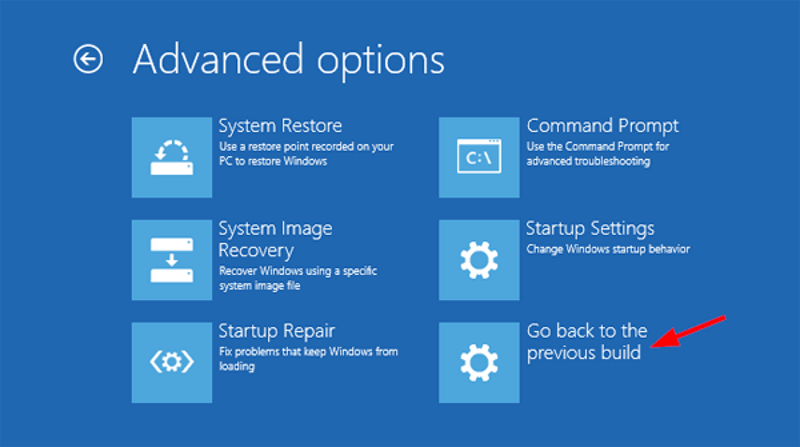
- Complete the rollback.
You can also compare your steps with the instructions in the Windows 11 rollback guide.
3. Uninstall Feature Update via Command Prompt
Use this when you need to target a specific update package.
- Boot into Advanced Startup.
- Open Command Prompt.
- Run:
wusa /uninstall /kb:xxxxxxx - Restart your PC.
A more in depth explanation of removing updates is available in the Windows 11 update uninstall guide.
4. Restore from a System Image
Use this option only if you previously created a full system image.
- Boot into Advanced Startup.
- Select Troubleshoot.
- Choose Advanced options then System Image Recovery.

- Select your image backup.
- Finish the recovery wizard.
5. Reinstall Windows
Use this when no rollback files or backups are available.
- Download the Media Creation Tool on another PC.
- Create a bootable USB.
- Boot from it and click Install now.
- Select Keep personal files if needed.
- Complete the installation.
FAQs
The rollback window expired or Windows removed the previous version files.
Only with a system image or external backup created before updating.
No. Only apps installed after the update may be removed.
No. Rollback restores the full OS version while System Restore affects only system files.
Conclusion
Rolling back a Windows feature update is the fastest way to fix system instability after installing a problematic release. Whether you use Windows Settings, Advanced Startup, or a system image, each method helps return your PC to a stable state. If none of these options work, reinstalling Windows remains the final and most reliable solution.

Read our disclosure page to find out how can you help Windows Report sustain the editorial team. Read more


Improve this guide


User forum
0 messages