
How to Fix ChatGPT Route Error 400 (Quick Steps)


 2 min. read
  Published on

If you’re seeing a ChatGPT route error 400, it usually means the request sent to the server was invalid. This error often prevents you from sending prompts or receiving responses. Thankfully, there are several quick fixes you can try.
How can I fix route error 400 in ChatGPT?
Table of contents
1. Clear browser cache and cookies
- Open your browser settings.
- Go to Privacy & Security.
- Select Clear browsing data.

- Choose Cookies and Cached images/files.
- Restart the browser and reload ChatGPT.
2. Update or switch browsers
- Open your browser’s menu.
- Check for available updates.

- Install the latest version.
- Restart the browser.
- If errors continue, try Chrome, Edge, or Firefox.
If problems persist, they can escalate into server-side failures. See this guide to the ChatGPT internal server error.
3. Log out and back in
- Click your profile icon in ChatGPT.
- Select Log out.
- Close the browser tab.
- Reopen ChatGPT.
- Sign in with your credentials again.
4. Disable browser extensions
- Open your browser’s extensions page.
- Locate ad blockers or privacy add-ons.
- Toggle them off one by one.
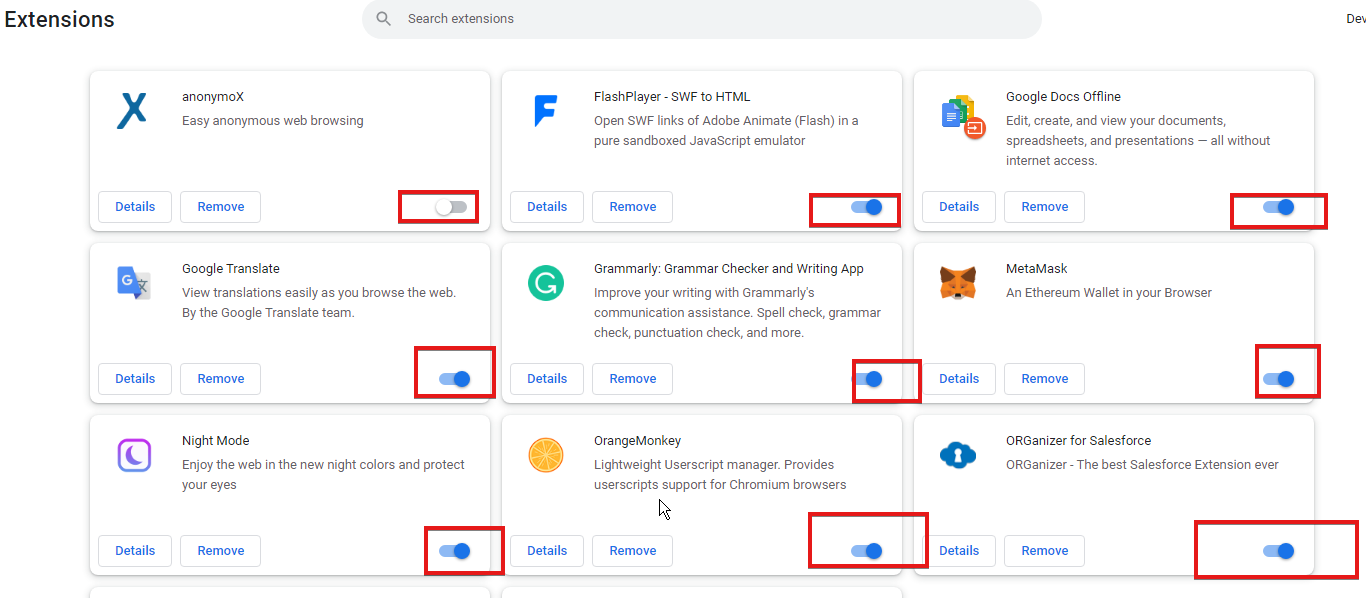
- Refresh ChatGPT after each change.
- Keep them disabled if the error disappears.
5. Try a different network
- Disconnect from your current Wi-Fi.
- Switch to another Wi-Fi connection.
- If available, test with mobile data.
- Refresh ChatGPT.
- Retry sending a prompt.
Intermittent connectivity can also break conversation flow. For help, read ChatGPT error in message stream.
6. Wait and retry later
- Close your ChatGPT tab.
- Wait at least 5–10 minutes.
- Check OpenAI’s server status if possible.
- Reopen ChatGPT.
- Try again with a simple prompt.
FAQs
It commonly happens due to corrupted cache, outdated browsers, session timeouts, or sending too many requests in a short period.
Keep your browser updated, clear cache regularly, avoid excessive requests, and ensure a stable network connection.
If none of the steps resolve the ChatGPT route error 400, it may be a temporary platform issue. Give it time, then try again with a fresh session and minimal extensions enabled.
For broader connectivity problems that resemble 400 symptoms, see how to resolve ChatGPT network errors.

Read our disclosure page to find out how can you help Windows Report sustain the editorial team. Read more


Improve this guide


User forum
0 messages