
Start Plex Server Without Login - Quick Step-by-Step Guide


 2 min. read
  Published on

You can start Plex Server without login by modifying the group policy or setting it up in the Windows task scheduler. It’s a useful configuration for users who want to ensure their media server is always accessible, even after a reboot.
I’ll walk you through the setup steps, so let’s begin!
How To Start Plex Server Without Login
I’ve covered two methods:
Modify Group Policy
This method will only work if the last interactive user doesn’t log out before the restart or shutdown. Follow the below steps:
- Type “Edit group policy” on the search bar beside the Windows icon and press Enter.
- Double-tap “Computer Configuration.”

- Double-click “Administrative Templates.”

- Open “Windows Components.”

- Scroll down to locate “Windows Logon Options” then double tap on it.

- Double-click “Sign-in and lock last interactive user automatically after a restart.”
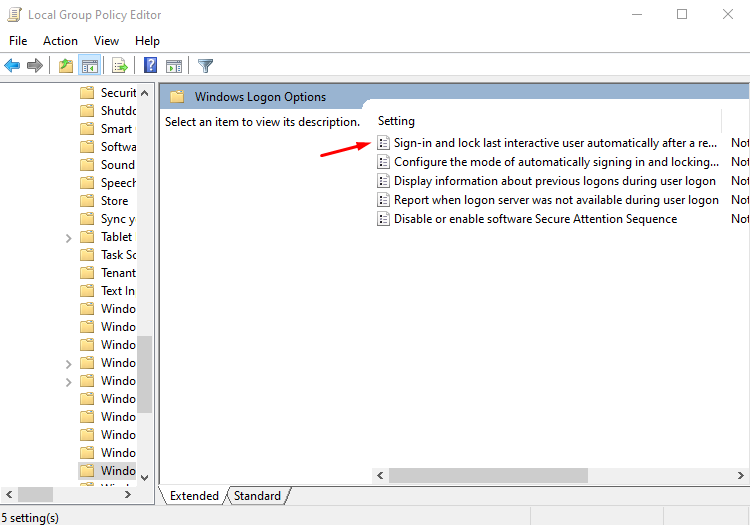
- Another tab will open. Select “Enabled” and save changes by clicking the OK button.

Set Up Plex in Windows Task Scheduler
Here’s what to do:
- Press the Windows icon + R, type “taskschd.msc,” and press Enter or OK.

- Click on “Create Task” in the right-hand panel.

- In the “General” tab, name your task (e.g., “Start Plex at Boot”). You can select “Run only when user is logged on” or “Run whether user is logged on or not.” Tap OK.

- Move to the “Triggers” tab, and click “New.”

- Select “At startup” from the drop-down menu beside “Begin the task.” Tap OK.

- Go to the “Actions” tab and click “New.”

- Tap “Browse” and select the Plex executable file from your PC. Once done, tap OK to save your new task.

Now, Plex will launch automatically when your computer boots up.
You can now start Plex server without login in by following the above simple steps. This configuration ensures that your media server remains accessible at all times. Enjoy uninterrupted access to your Plex Media Server, no matter when or how often your system reboots!

Read our disclosure page to find out how can you help Windows Report sustain the editorial team. Read more


Improve this guide


User forum
0 messages