
Path Too Long Error in SyncToy: 3 Ways to Fix it
If the error appears for a few files/folder, manually rename them


 3 min. read
  Published on

Often, while creating backups or syncing files using Microsoft’s native solution, SyncToy, you will come across the path too long error. And it doesn’t go away, no matter what you do!
The message accompanying the error reads, Exception during preview: The path is too long after being fully qualified. Make sure the path is less than 260 characters.
As the message suggests, the error arises when the path length exceeds the 260-character limit in File Explorer. If that’s not the case, there must be an issue with SyncToy itself. A quick workaround is to skip all files with long paths as long as they are minimal and not critical!
What can I do if SyncToy says the path is too long?
1. Reduce the characters in the path
If you can actually see several folders and files that are to be synced with longer-than-usual names, rename them. This time, use a shorter one to reduce the file path. Once done, reboot the PC, and verify whether SyncToy still shows that the path is too long.
This isn’t the most viable solution when we are dealing with hundreds and thousands of files, but if it’s just a few, a manual approach saves both time and effort.
2. Repair SyncToy
- Press Windows + R to open Run, type appwiz.cpl in the text field, and hit Enter.
- Select the Microsoft Sync Framework 2.0 Core Components (x64) ENU entry, and click on Change.
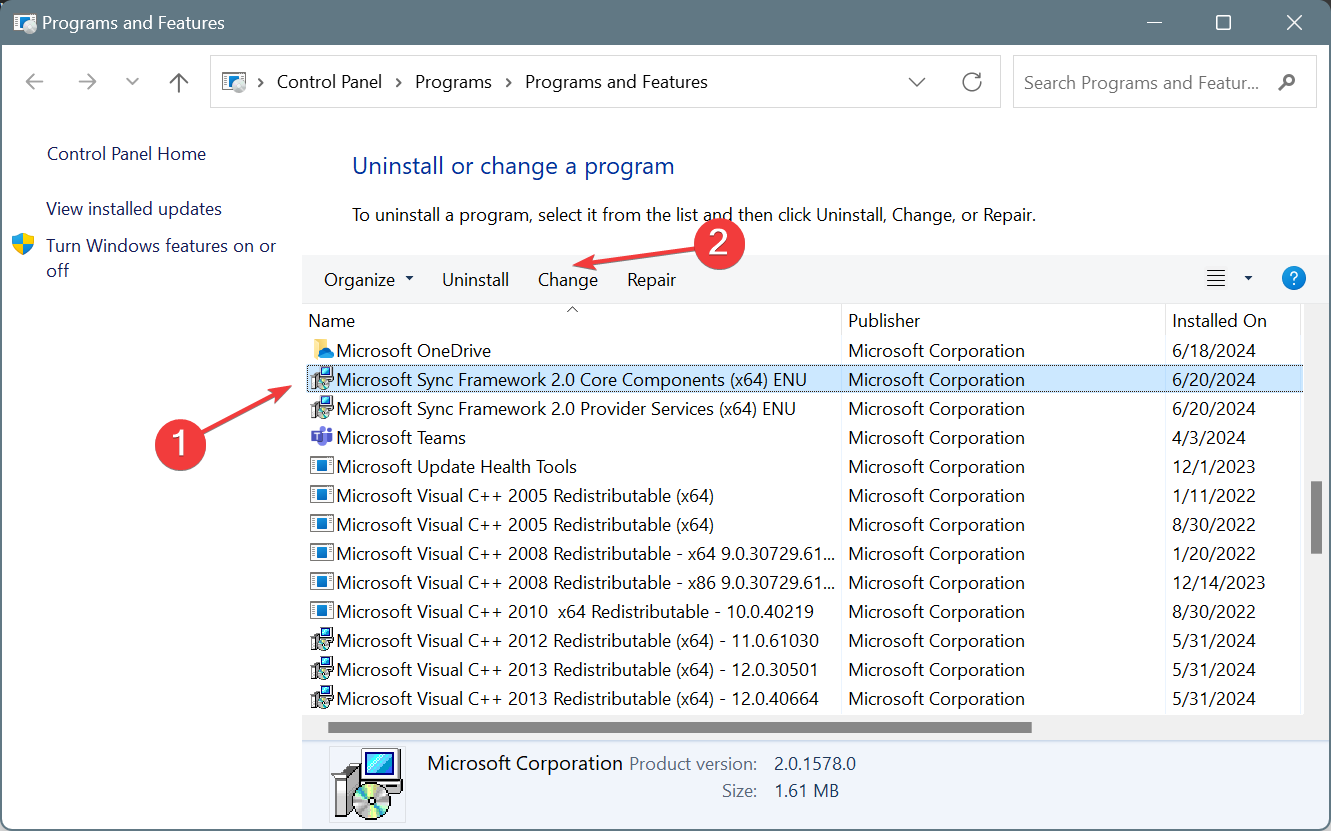
- Choose Repair and then click on Finish.
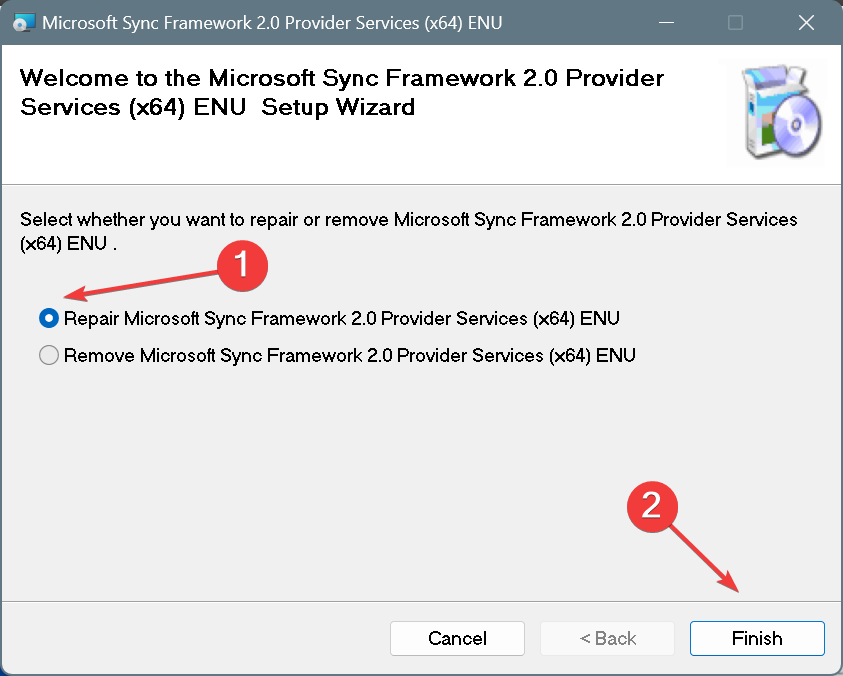
- Similarly, repair the Microsoft Sync Framework 2.0 Provider Services (x64) ENU component.
- Finally, reboot the PC and check for improvements.
Given that SyncToy has been discontinued and a newer version won’t be rolled out, your best bet is to repair the current installation when faced with any errors.
3. Use a SyncToy alternative
If nothing works, I recommend you use an effective SyncToy alternative to sync the files across folders or disks without being told that the path is too long. Many tools can effectively bypass the path-length limitation.
Several users have also suggested using Long Path Tool, but our experts recommend against it due to security and privacy concerns. Although safer Long Path Tool alternatives exist, and you can use one in this case!
As you know, path too long errors can also be seen when extracting, editing, or moving files, even without SyncToy. The problem, in most cases, has to do with the OS and not the software.
Which fix worked for you? Share with our readers in the comments section.

Read our disclosure page to find out how can you help Windows Report sustain the editorial team. Read more


Improve this guide


User forum
0 messages