
TikTok Camera Not Working? 4 Fixes to Try Now


 3 min. read
  Published on

If the TikTok camera is not working, you may face a black screen, laggy recording, or failed access to the camera. The issue usually comes from outdated apps, missing permissions, or temporary glitches. Follow these grouped steps to fix it.
Table of contents
TikTok camera not working, how can I fix it?
1. Check permissions and settings
To make sure TikTok can access your device’s camera, follow these steps:
- Open device Settings.
- On Android: Go to Apps > TikTok > Permissions > Camera, then enable it.

- On iPhone: Go to Settings > TikTok, then turn on Camera access.
- Restart the app to confirm changes.
This ensures TikTok has the necessary access to function correctly.
If you are using TikTok on a Fire Tablet, you may also run into related issues. In that case, check this guide on TikTok not working on Fire Tablet.
2. Restart and refresh
Sometimes a quick restart solves minor glitches. Try these steps:
- Close the TikTok app completely from recent apps.
- Relaunch TikTok and test the camera.
- If it still fails, restart your device to refresh system resources.
Restarting clears hidden conflicts that might block the camera.
If you are still unable to load the app properly, it may be connected to connectivity issues. Here’s how to fix a TikTok network error.
3. Update and clear cache
Outdated app versions or corrupted cache files can cause the TikTok camera to fail. Here’s what to do:
- Open Google Play Store or App Store.
- Search for TikTok and tap Update if available.
- On Android, go to Settings > Apps > TikTok > Storage, then select Clear Cache.
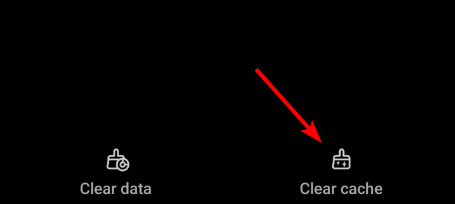
- Reopen TikTok and test the camera.
This fixes compatibility issues and removes corrupted files that may interfere with recording.
4. Reinstall TikTok
If nothing works, reinstalling TikTok often resolves deep-rooted problems. Follow these steps:
- Uninstall TikTok from your device.
- Restart your phone.
- Download TikTok again from Google Play Store or App Store.

- Log in and test the camera feature.
A clean installation eliminates any leftover corrupted data.
For users on PC, you can also learn how to download TikTok on Windows 10 to enjoy the app on a bigger screen.
If your TikTok camera is still not working, try the fixes above depending on your device. Each method addresses a common cause, from permissions and updates to reinstalling the app. By following these steps, you should be able to get the camera working again and continue creating videos without interruption.
FAQs
This usually happens due to missing camera permissions or corrupted cache files. Allow access in settings and clear cache to fix it.
Close background apps, update TikTok, and restart your device. This improves performance and reduces lag.
Yes. Running an old app version often leads to compatibility problems. Always keep TikTok updated.
The app may be corrupted. Reinstalling TikTok usually resolves crashing problems related to the camera.
No. Your account and videos remain safe. Only the app data on your device is removed.

Read our disclosure page to find out how can you help Windows Report sustain the editorial team. Read more


Improve this guide


User forum
0 messages