
How to Toggle Between Screens: 3 Ways to Do it
You can do that with a single keyboard shortcut


 2 min. read
  Published on

Switching between screens on multiple monitors can be a game-changer for productivity, but it can also be a bit tricky if you’re not familiar with the shortcuts, so today we’re going to show you how to do that.
How can I toggle between screens?
1. Using Win + Tab
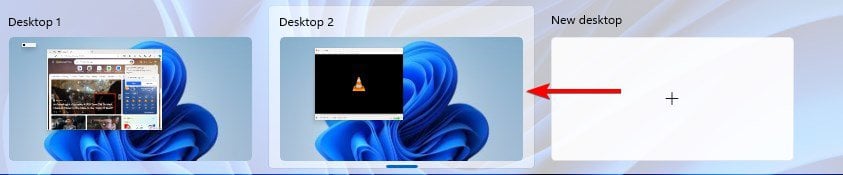
- Press and hold the Windows + Tab key.
- You’ll now see all available desktops.
- Click on the screen that you want to use.
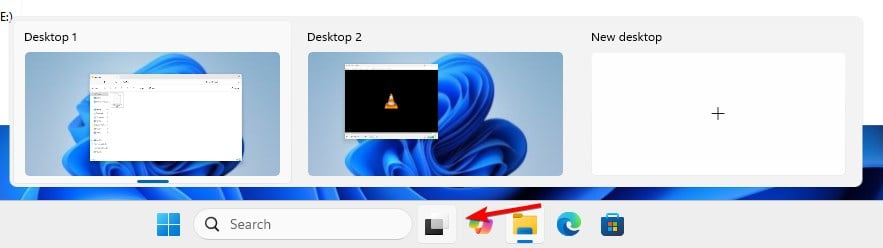
- Optional: Use the Task View icon to switch between screens.
2. Using Win + Shift + arrow
- Press and hold the Windows + Shift keys.
- Press the Left or Right arrow key. Release all 3 keys.
- This will move the active window to the left or right monitor.
3. Using Win + P
- Press the Windows key + P.
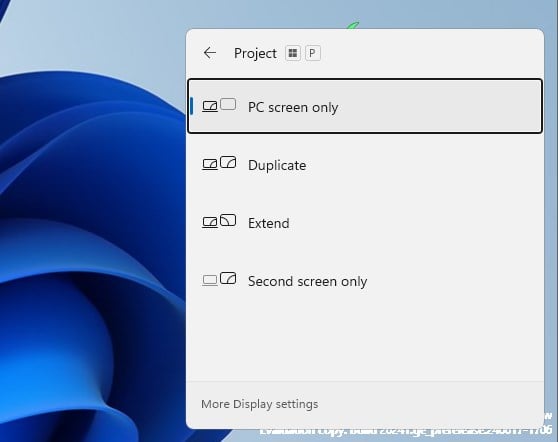
- Select the display mode from the menu:
- PC screen only
- Duplicate
- Extend
- Second screen only
Utilize this for managing your multi-monitor setup preferences directly from the keyboard.
By mastering these shortcuts and tools, you can enhance your multi-monitor experience and boost your productivity.
To learn more, we have great guides on how to move a game to another monitor and how to move an application to another monitor, so don’t miss them.
If you frequently use dual-monitor setups, don’t miss our article on setting up multiple Windows 11 display settings profiles for more information.

Read our disclosure page to find out how can you help Windows Report sustain the editorial team. Read more


Improve this guide


User forum
0 messages