
View All Installed Drivers in Windows 11 Using Built-In Tools


 4 min. read
  Published on

Users often search how to view installed drivers when they face hardware issues after an update or device replacement. You can check the full driver list with built-in Windows tools. These methods help you troubleshoot missing, outdated, or faulty drivers quickly.
Table of contents
How to View Installed Drivers in Windows 11?
View installed drivers with Device Manager
Device Manager shows every driver installed for your hardware. It helps you confirm versions, troubleshoot errors, and identify outdated components.
- Press Windows key and type Device Manager.

- Select Device Manager.
- Expand any category like Display adapters or Network adapters.
- Right click a device and choose Properties.

- Open the Driver tab to view version, date, provider, and file details.
Device Manager pulls driver details directly from the Windows driver store and each device’s INF file. You can get more clarity on version information when you review a guide on checking the driver version in Windows 11, which helps you confirm if a device uses the correct release.
Check installed drivers with Command Prompt
Command Prompt gives you a complete, exportable driver list that helps with audits or troubleshooting.
- Press Windows key, type cmd, and select Run as administrator.
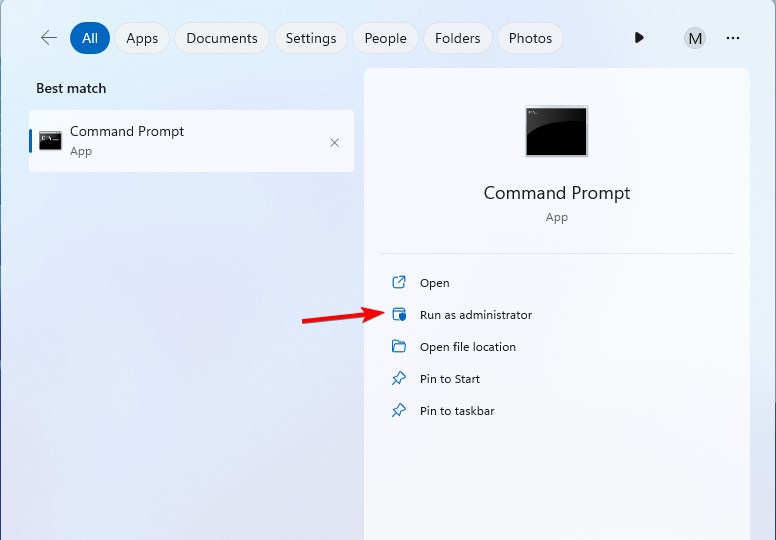
- Type the driverquery command and press Enter.
- Wait for Windows to display the full list of installed drivers.
- Run the verbose version if you want more details.
- Export the output to a file if you want to review it later.
Driverquery reads driver metadata from the system registry and outputs all driver names, versions, and paths. This approach also helps you understand storage locations, which becomes useful when you learn more about where Windows 11 stores drivers for maintenance or cleanup purposes.
View drivers using PowerShell
PowerShell provides deeper filtering and lets you target specific manufacturers or device types.
- Press Windows key, type PowerShell, and select Run as administrator.
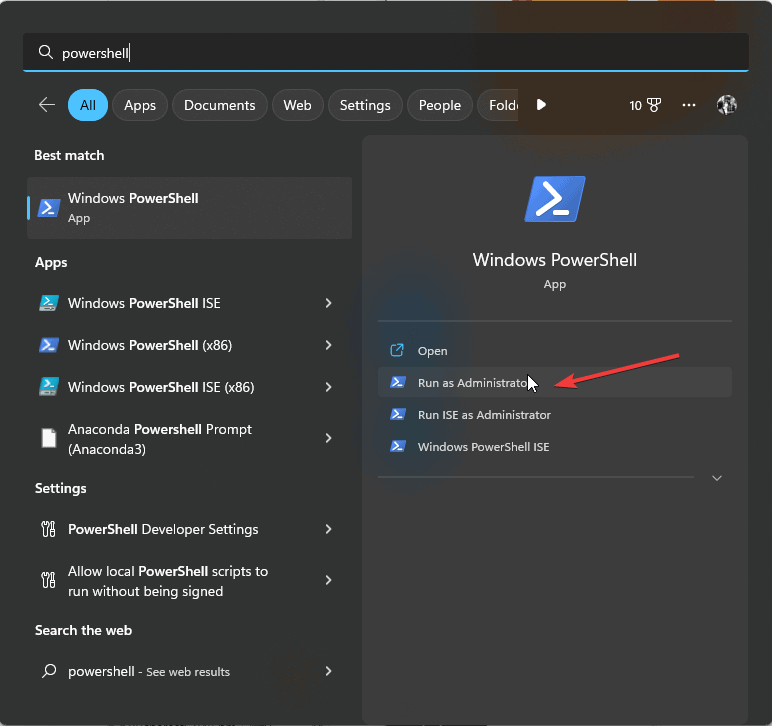
- Run a driver listing command.
- Wait for the full list of signed drivers to load.
- Add filters to show drivers from specific manufacturers.
- Review version, device name, and INF path.
PowerShell queries Windows Management Instrumentation to gather complete driver data. After you identify outdated entries, you can use practical resources such as this explanation on how to update drivers in Windows 11 to bring your system up to date.
Use System Information to check installed drivers
System Information organizes driver details into a readable interface that helps users review driver components without running commands.
- Press Windows key, type System Information, and open it.
- Expand Software Environment.
- Select System Drivers.
- Review the list, including type, state, and file location.
System Information provides a structured view of every system driver, which helps you diagnose startup issues and loading states.
FAQs
You can export the entire list using the built in command line export function, which writes all driver data to a readable file.
Missing entries often relate to hidden devices or hardware that is no longer connected. You can enable hidden device viewing to reveal them.
Yes. Windows includes a signature verification tool that identifies unsigned or unverified driver files.
Yes. These tools only show driver information and do not change system files or settings.
Tips
- Compare driver dates when you troubleshoot hardware problems.
- Create driver exports regularly to document system changes.
- Use PowerShell filters to isolate specific manufacturers or device types.
Viewing installed drivers helps you diagnose hardware conflicts, verify driver versions, and keep your PC stable. Device Manager, Driverquery, PowerShell, and System Information each offer clear ways to inspect drivers and understand how Windows manages your hardware components.

Read our disclosure page to find out how can you help Windows Report sustain the editorial team. Read more


Improve this guide


User forum
0 messages