
Windows AppData Folder: What It Does and How to Free Up Space


 3 min. read
  Updated on

The AppData folder in Windows is a rather important directory that most users never see, so today we’re going to learn what it does.
What is the AppData folder in Windows?
Table of contents
The AppData folder in Windows is a hidden directory where applications store user-specific data and settings. It includes configuration files, temporary data, cache, and other essential information that programs need to run properly. Each Windows account has its own AppData folder, which ensures personalized settings and data separation across users.
Where is the AppData folder located?
The AppData folder is found in each user’s profile path:
C:\Users\YourUsername\AppDataInside, there are three subfolders:
- Local – Stores data that is specific to the computer and not synced across devices.
- LocalLow – Holds data with lower security levels, often used by web browsers or games. If this folder is missing, you can follow this Locallow missing in Windows guide.
- Roaming – Contains data that can move with your user profile between devices on a network, such as browser bookmarks or app preferences.
For a deeper breakdown of how Local, LocalLow, and Roaming differ, read this concise guide: Local vs LocalLow vs Roaming Folders.
Why is the AppData folder hidden?
Microsoft hides the AppData folder to prevent accidental deletion or modification of files that are essential for applications to function. Removing or changing files here can cause apps to break or lose saved settings.
How to access the AppData folder
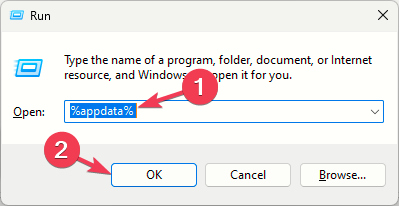
- Press Windows + R, type %appdata%, and hit Enter. This opens the Roaming folder.
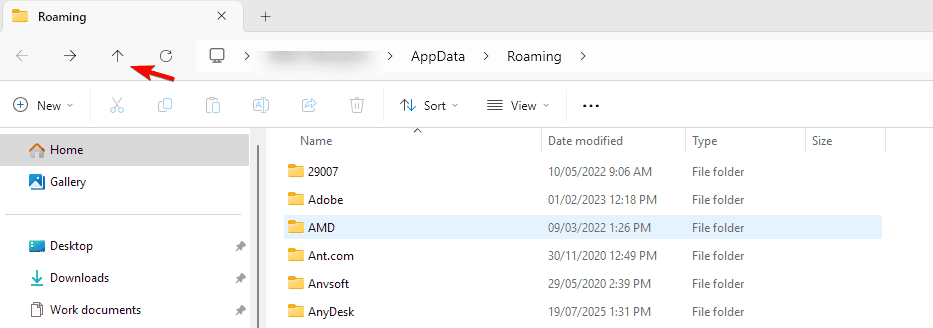
- To reach Local or LocalLow, navigate one level up in File Explorer.
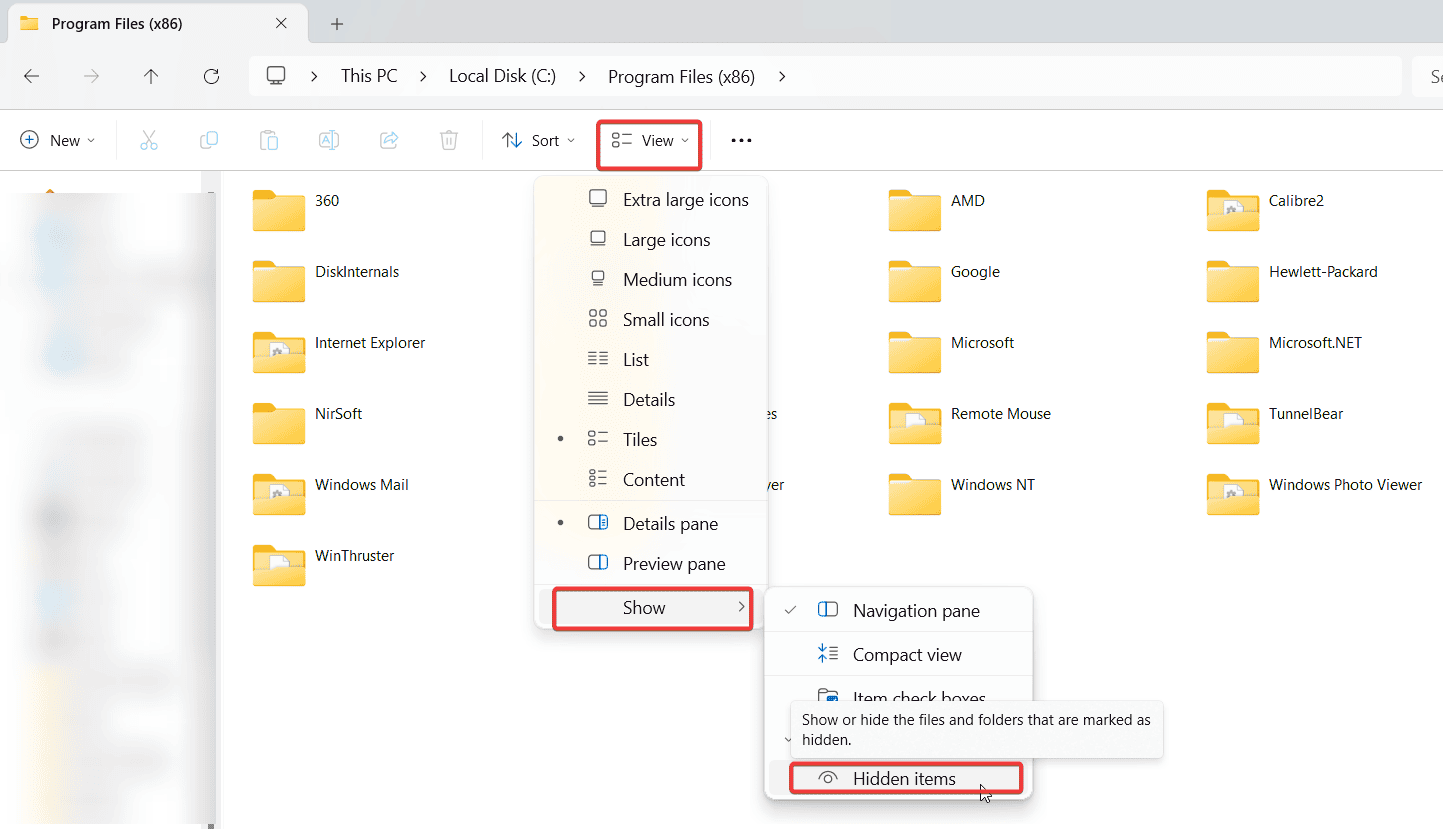
- Alternatively, enable Show hidden items in File Explorer settings to view AppData directly from your user directory.
Should you clean the AppData folder?
Yes, but carefully. The AppData folder often accumulates large amounts of cache, logs, and temporary files that can slow down your system. Cleaning it can free up space, but make sure not to remove important configuration data. A full walkthrough is available in this AppData cleanup guide for Windows 11.
If the folder is taking up too much space, follow this guide on AppData folder too big for safe solutions to reduce its size.
For temporary files that Windows creates during updates or app use, check out this detailed Temp folder cleanup guide.
Yes, but only temporary or cache files. Avoid deleting folders for actively used programs, as this may reset settings or cause errors.
Applications may stop working, lose settings, or require reinstallation. It is not recommended to delete the whole folder.
Depending on installed apps, it can range from a few hundred MBs to several GBs. Regular cleaning helps manage disk space.

Read our disclosure page to find out how can you help Windows Report sustain the editorial team. Read more


Improve this guide


User forum
0 messages