
Where Are Fonts on Windows 11? Folder Location & More
Find where Windows stores fonts, how to change font in your laptop & more


 3 min. read
  Updated on

Have you ever wondered where all those fonts on your computer are stored? Knowing where to find your fonts is crucial whether you’re a graphic designer or someone who likes to personalize their system. In this piece, we will walk you through the font locations in Windows and show you how to manage them effectively.
Font locations might be missing due to a Windows error or a corrupted file. Those issues can be easily solved with the help of professional repair software.
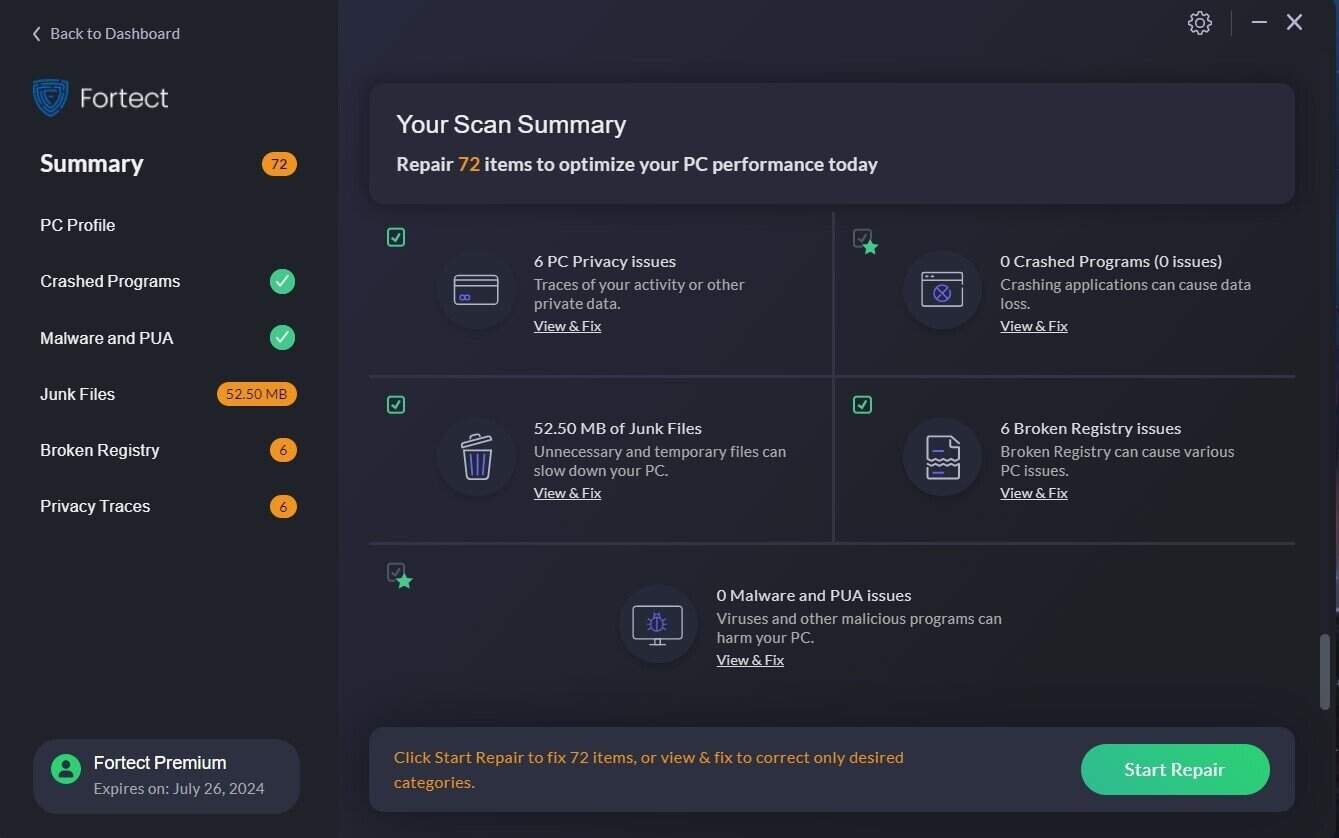
Fortect takes the hassle out of troubleshooting by scanning automatically and restoring your PC to peak condition. With just a few clicks, you get a smoother, more reliable system.
This is how you can fix PC errors using Fortect:
- Install and launch Fortect.
- Let the tool scan your system for issues.
- Press Start Repair.
- Restart your PC to finish the process.
Disclaimer: In order to perform some operations, this software must be updated to the premium plan.
How to find fonts on your computer
In Windows 10 and Windows 11, fonts are primarily stored in the same directory, C:\Windows\Fonts. This default font folder contains all the preinstalled fonts and user-installed fonts.
How to Navigate to the Fonts Folder
Method 1: Using File Explorer

- Open File Explorer by pressing Windows Key + E.
- Now open your C drive > Windows > Fonts folder.
Method 2: Using Control Panel

- On your taskbar, open the Search field and type Control Panel. Hit Enter.
- In the top-right of the Control Panel windows, in the Search Control Panel bar, type fonts and press Enter.
Method 3: Using Shell Command

- Press Windows Key + R to open the Run dialog box.
- Type shell:fonts and press Enter.
Creating a Shortcut to the Fonts Folder
Having quick access to the fonts directory can be helpful. Here’s how to create a shortcut:

- Navigate to the Fonts folder using the above methods.
- Right-click on the Fonts folder, then click on Show more options.
- Choose Send to and then Desktop (create shortcut).
Now, you’ll have a shortcut to the default font folder location on your Windows 11 desktop for easier access. You can even use a keyboard shortcut to open it: right-click the shortcut > click Proprieties > click Shortcut tab > under Shortcut key, add your preferred key combination.

Remember that depending on your user profile, you might need administrative rights.
Adding or Removing Fonts
To Add Fonts:

- Download the font file (usually TTF files or OTF files). If it’s archived, unzip it.
- Open the Fonts folder.
- Drag and drop the downloaded font file into the folder.
To Remove/Uninstall Fonts:

- Open the Fonts folder.
- Locate the font you wish to remove.
- Right-click on the font and choose Delete.
Downloading and Installing New Fonts

Adding additional fonts can give your projects a new look. You can add Thai fonts, TrueType fonts, non-European fonts, 3D fonts, or even custom fonts.
- Visit a reputable font website like Google Fonts or DaFont.
- Choose a font and download the file.
- Follow the steps above to Add Fonts.
If you want more details on how to download fonts on Windows 10 and 11, check out this guide. Also, if you want to download Microsoft Office fonts, the process is pretty similar.
Conclusion
Knowing where fonts are stored and how to manage them empowers you to take full control of your system’s aesthetics and functionality. From locating the default fonts folder location to adding or removing fonts, these simple steps can make a big difference in how you use and personalize Windows 10 and Windows 11.
You can also use fonts software to create your own. If that’s too time-consuming, check out the most popular fonts for Windows 11 that you can download right now.

Read our disclosure page to find out how can you help Windows Report sustain the editorial team. Read more


Improve this guide


User forum
0 messages