
How to Check Windows Update History with PowerShell


 3 min. read
  Updated on

If you want to quickly see which updates installed or failed, PowerShell is the fastest way. You can view, filter, and export your update history without opening Settings.
Table of contents
How to Check Windows Update History Using PowerShell?
1. Open PowerShell as Administrator
- Press Windows + S, type PowerShell.
- Right-click Windows PowerShell and select Run as administrator.
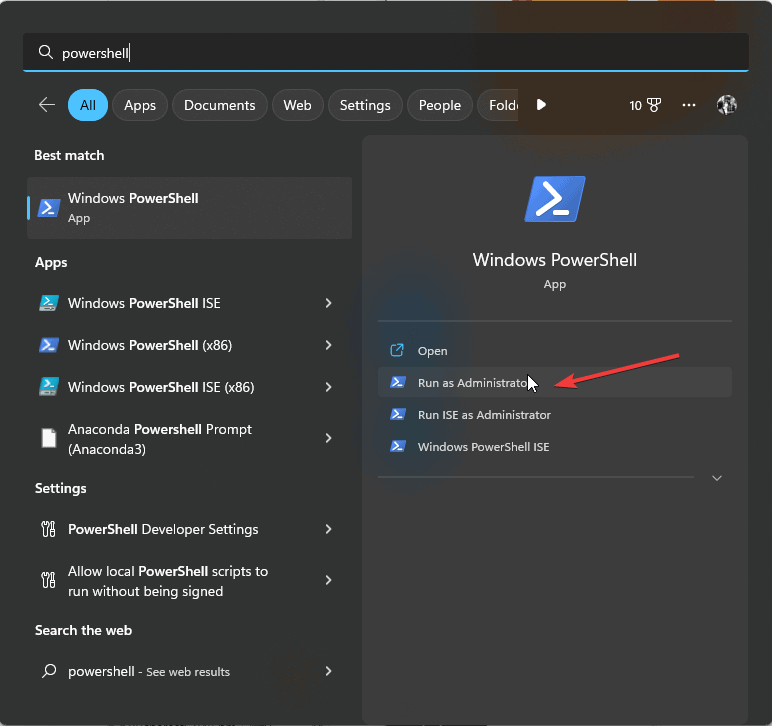
- Approve the User Account Control prompt.
If you prefer a point-and-click view, see this guide on how to view Windows update history.
2. View All Installed Windows Updates
- Run the following to list installed updates by ID, description, and date:
Get-HotFix
- Scroll the table or pipe to Format-Table for custom columns if needed.
To confirm a specific patch, use this tutorial on how to check if a particular update is installed.
3. Filter Updates by Date or ID
- Find one KB:
Get-HotFix | Where-Object {$_.HotFixID -eq "KB1234567"}
- Show recent updates:
Get-HotFix | Where-Object {$_.InstalledOn -gt (Get-Date).AddDays(-30)}
4. Export the Update History to a File
- Create a CSV:
Get-HotFix | Export-Csv "C:\Users\Public\WindowsUpdateHistory.csv" -NoTypeInformation
- Open the CSV in Excel to sort by date or KB number.
5. Use the Windows Update Module for Detailed Logs
- Install the module with the following command:
Install-Module PSWindowsUpdate - List full results:
Get-WUHistory
6. Check Event Viewer Logs Through PowerShell
- Run:
Get-WinEvent -LogName System | Where-Object {$_.ProviderName -eq "Microsoft-Windows-WindowsUpdateClient"} | Select TimeCreated, Message - Review timestamps and error messages for failed installs.
Learn more ways to access logs in this guide on how to find the Windows update log.
Why Check Update History with PowerShell
PowerShell is fast and scriptable. It helps you audit patches, isolate failed updates, and export reports. It also works well for remote checks across multiple PCs.
PowerShell’s automation abilities go far beyond update checks. You can learn how to create, run, and automate scripts by following this comprehensive Windows PowerShell scripting tutorial that covers step-by-step examples for beginners.
FAQs
Use the Windows Update module to list entries and filter by failed results.
Yes. Use the update’s KB number with the system uninstaller command from an elevated shell.
Get-HotFix shows installed updates. Get-WUHistory shows installs plus failures and pending state.
Yes, if you have admin rights and remote management enabled, you can query update info on remote devices.
Final Thoughts
With a few commands, you can review, filter, and export your update history. Use the module for deeper results and Event Viewer for granular error details. The linked guides above cover GUI and log-based methods if you need alternatives.

Read our disclosure page to find out how can you help Windows Report sustain the editorial team. Read more


Improve this guide


User forum
0 messages