
Fix WUSA Install Error from Network Share on Windows 11


 3 min. read
  Updated on

Some users report WUSA install errors when trying to apply updates from a network share. This guide explains why it happens and shows quick ways to fix it.
Table of contents
How to Fix WUSA Install Errors?
1. Copy the .msu File Locally
- Locate the .msu update file on the network share.

- Copy the specific file to a local folder on your PC, such as Desktop or Downloads.
- Double-click the copied file to run the installer.
This avoids the conflict caused by multiple .msu files in one shared directory.
2. Use Known Issue Rollback
- Install the latest cumulative updates for your Windows version.
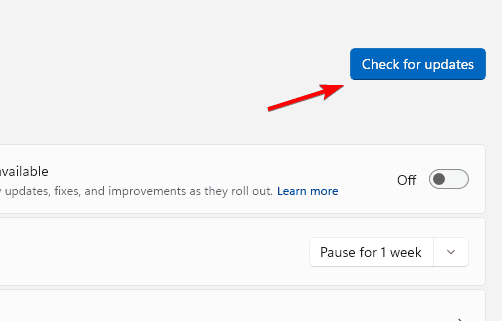
- Restart your device so the Known Issue Rollback policy can apply.
- Try the installation again and confirm the path error no longer appears.
3. Apply Group Policy for IT Environments
- Open the Group Policy Editor with gpedit.msc.

- Go to Computer Configuration > Administrative Templates > Windows Components > Windows Update.

- Apply the Microsoft provided policy update to avoid network share conflicts.
- Restart affected systems to enforce the new policy.
In larger environments, it also helps to understand why only one instance of WUSA.exe can run because it affects how you stage and sequence updates.
4. Wait for the Permanent Fix
Microsoft is working on a long term fix. Until then, copying the .msu locally and using Known Issue Rollback or Group Policy are the most reliable workarounds.
Why WUSA Installs Fail in Windows 11?
When using Windows Update Standalone Installer (WUSA), updates may fail if launched from a shared network location containing multiple .msu files.
- You may see the ERROR_BAD_PATHNAME code.
- Update History may briefly show restart required after a reboot.
This issue affects Windows 11 versions 24H2 and 25H2, as well as Windows Server 2025. If you need a refresher on the tool, read this overview of what WUSA.exe is and how it works.
FAQs
It indicates the installer cannot resolve the correct .msu file path, often when running from a network share that contains multiple .msu files.
No. The behavior occurs with standalone .msu files, not with updates delivered directly through Windows Update.
Windows 11 24H2, Windows 11 25H2, and Windows Server 2025.
Conclusion
WUSA install errors from network shares typically stem from path conflicts when multiple .msu files sit in the same shared folder. Copy the update file locally and run it from your PC. In managed environments, apply Known Issue Rollback or the dedicated Group Policy until Microsoft ships a permanent fix. If issues persist after installing an update, you can follow these steps to uninstall recent Windows 11 updates and restore stability.

Read our disclosure page to find out how can you help Windows Report sustain the editorial team. Read more


Improve this guide


User forum
0 messages